

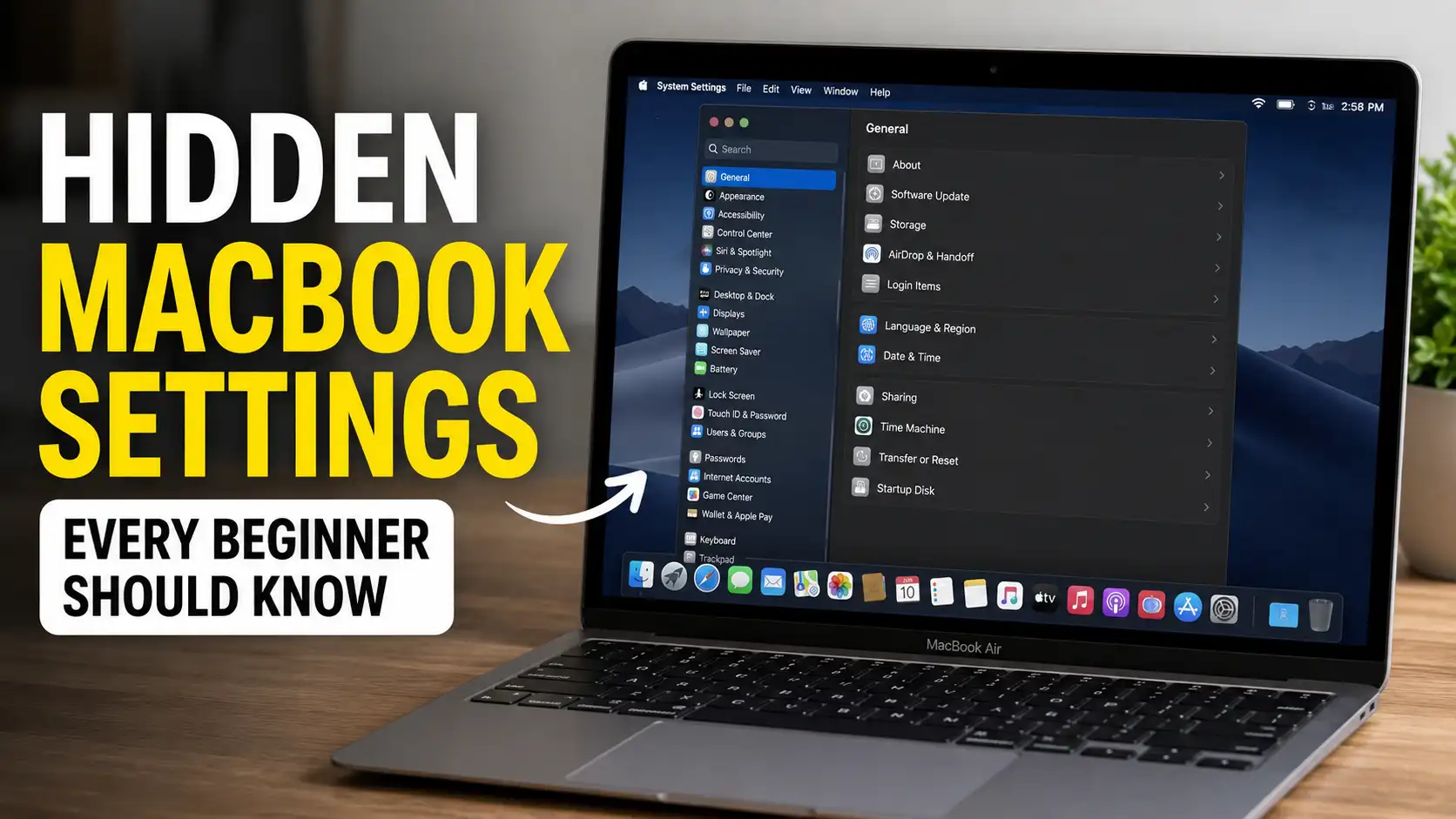
Buying your first MacBook is often a memorable experience. The sleek aluminum body, the crisp Retina display, the smooth trackpad, and the intuitive macOS interface all combine to create a premium computing experience that feels different from many traditional laptops. Whether you’re a student, professional, freelancer, or casual user, a MacBook is designed to help you work efficiently right from the moment you turn it on.
However, many beginners make the same mistake: they use their MacBook exactly as it comes out of the box. While Apple’s default settings are excellent, they only reveal a fraction of what macOS is capable of. Hidden throughout the operating system are powerful settings that can improve productivity, simplify navigation, enhance battery life, and make your overall experience significantly better.
The best part is that you don’t need to be a tech expert to take advantage of these features. Most of them can be enabled in just a few clicks. Yet despite being incredibly useful, many MacBook owners never discover them.
If you’re new to macOS or simply want to get more out of your device, these seven hidden MacBook settings deserve your attention.
Why MacBook Settings Matter More Than You Think
One of Apple’s greatest strengths is its focus on simplicity. Unlike some operating systems that overwhelm users with countless menus and configuration options, macOS hides many advanced features behind a clean and minimalist interface. This approach makes the system approachable for beginners but also means many powerful tools remain undiscovered.
The difference between a default MacBook and a customized MacBook can be surprisingly significant. Small adjustments can reduce the number of clicks required to complete everyday tasks, help you stay organized, and even extend the lifespan of your hardware.
Think of these settings as shortcuts that remove friction from your daily workflow. Individually, they may seem minor. Collectively, they can save hours of time over months and years of use.
Hidden Setting 1: Hot Corners
What Are Hot Corners?
Hot Corners is one of the most underrated productivity features built into macOS. The concept is incredibly simple: each corner of your screen can be assigned a specific action. Whenever your cursor touches that corner, macOS automatically performs the chosen action without requiring a click.
At first glance, this might sound like a small convenience. However, once you begin using Hot Corners regularly, you’ll quickly realize how much time it can save. Instead of opening menus, searching for buttons, or remembering keyboard shortcuts, you can trigger important actions with a simple movement of your cursor.
Many experienced Mac users consider Hot Corners one of the most useful hidden features because it seamlessly integrates into daily workflows. Whether you’re working on a large project, switching between applications, or simply trying to navigate more efficiently, Hot Corners can significantly reduce unnecessary steps.
Another reason this feature is so valuable is its flexibility. Different users have different needs. Some people prioritize security, while others focus on multitasking or desktop organization. Hot Corners allows you to customize each corner according to your personal workflow.
How to Configure Hot Corners
To access Hot Corners, open System Settings and navigate to Desktop & Dock. Scroll to the bottom and click Hot Corners. You’ll see four dropdown menus representing the four corners of your display.
A popular setup is assigning Mission Control to the top-left corner. This allows you to instantly view all open windows and applications. The top-right corner can be used to lock your screen, providing an easy way to secure your MacBook whenever you step away.
Meanwhile, the bottom-left corner can reveal the desktop, which is particularly useful if you frequently store files or folders there. The bottom-right corner can launch Launchpad, giving you instant access to installed applications.
Once configured, Hot Corners quickly becomes second nature. After a few days, you’ll find yourself naturally moving the cursor toward specific corners without even thinking about it. It’s one of those features that feels insignificant until you start using it regularly.
Hidden Setting 2: Trackpad Gestures
Essential Gestures Every Beginner Should Learn
Apple’s trackpad is often considered the gold standard for laptop trackpads, and for good reason. It’s accurate, responsive, and packed with gesture controls that many users barely scratch the surface of.
Most beginners use the trackpad as if it were a traditional mouse. They click, drag, and scroll without exploring the advanced gestures that make navigation significantly faster. Learning these gestures can completely transform how you interact with your MacBook.
For example, swiping up with three fingers instantly displays all open windows through Mission Control. Swiping left or right with three fingers allows you to switch between applications without using the Dock. Pinching with your thumb and three fingers opens Launchpad, while spreading them apart reveals the desktop.
These gestures may feel unfamiliar initially, but they quickly become intuitive. Within a few days, you’ll likely start relying on them more than traditional navigation methods.
How Gestures Improve Productivity
Trackpad gestures eliminate unnecessary clicks and menu navigation. Instead of moving your cursor across the screen to locate buttons, you can perform actions instantly with simple finger movements.
Imagine working on a research project that requires multiple browser windows, a document editor, and a note-taking application. Switching between them manually can become tedious. With gestures, the transition becomes nearly instantaneous.
Another major advantage is reduced interruption. Every time you stop what you’re doing to locate a menu or click a button, your focus briefly shifts. Gestures minimize these interruptions, helping you stay in a productive flow state.
For students, writers, designers, and professionals, mastering trackpad gestures can provide one of the biggest productivity improvements available on macOS.
Hidden Setting 3: Battery Health Management
Why Battery Health Is Important
A MacBook battery is designed to last for years, but like all rechargeable batteries, it gradually degrades over time. The rate of degradation depends heavily on charging habits, temperature, and overall usage patterns.
Many users focus exclusively on battery percentage while ignoring battery health. Although having a full charge is convenient, maintaining battery health is ultimately more important for long-term performance.
A healthy battery means longer runtimes, better reliability, and fewer expensive repair costs down the road. Ignoring battery health can lead to reduced capacity, shorter usage times, and premature battery replacement.
Apple understands this issue and has developed intelligent battery management tools specifically designed to slow the aging process.
How to Enable Battery Optimization
Navigate to System Settings, select Battery, and open Battery Health. Ensure Battery Health Management is enabled.
This feature uses machine learning to analyze your charging behavior. Instead of keeping the battery at 100% continuously, macOS may delay charging beyond certain levels when it predicts you won’t need a full battery immediately.
This might seem counterintuitive at first. After all, isn’t a full battery better? In reality, lithium-ion batteries experience more stress when maintained at maximum charge for extended periods.
Battery optimization reduces that stress while preserving convenience. Over the course of several years, this can help maintain higher battery capacity and improve overall longevity.
It’s one of those settings that quietly works in the background while delivering long-term benefits that many users never notice until years later.
For Apple users who enjoy discovering lesser-known features, don’t miss These 6 Hidden iPhone Features Will Surprise You to uncover useful iOS tricks that can make your iPhone smarter, faster, and more convenient to use every day.
Hidden Setting 4: Finder Customization
Making Finder Easier to Use
Finder is the backbone of file management on macOS. Every download, document, image, video, and folder eventually passes through Finder in some form.
Despite its importance, many beginners never customize Finder beyond its default layout. While Apple’s default configuration is clean, it doesn’t necessarily provide the most efficient experience for every user.
A few strategic adjustments can make file navigation faster, reduce confusion, and improve organization. These changes become particularly valuable as your file library grows over time.
Whether you’re managing school assignments, business documents, creative projects, or personal files, a properly configured Finder can save significant time.
Useful Finder Tweaks
One of the most useful settings is displaying file extensions. This helps identify file formats instantly and reduces the likelihood of opening files with the wrong applications.
The path bar is another essential feature. It shows the exact location of files and folders, making navigation much easier when working with complex directory structures.
You should also consider enabling the status bar, which displays useful information such as file counts and storage details. Customizing the sidebar with frequently used folders can further streamline navigation.
Another useful tip is creating dedicated folders for projects rather than storing everything in Downloads or Desktop. Combined with Finder customization, this habit can significantly improve organization and reduce clutter.
A well-organized Finder transforms file management from a chore into a seamless part of your workflow.
Hidden Setting 5: Stage Manager
What Is Stage Manager?
Stage Manager is a relatively new feature designed to help users manage multiple windows more effectively. If you’ve ever felt overwhelmed by dozens of overlapping windows, Stage Manager may be exactly what you need.
The feature automatically organizes open applications into groups while keeping your active window front and center. Inactive windows move to the side, where they remain accessible without creating clutter.
This approach creates a cleaner workspace and reduces visual distractions. Instead of dealing with a chaotic desktop, you gain a structured environment that encourages focus.
Many users initially dismiss Stage Manager because it feels different from traditional window management. However, those who give it a chance often discover that it dramatically improves multitasking.
When to Use Stage Manager
Stage Manager shines when working with multiple applications simultaneously. Writers can keep research materials organized while focusing on their documents. Designers can switch between creative tools without losing track of open projects.
Students working on assignments often benefit from having browser tabs, notes, and productivity applications organized into manageable groups. Professionals handling multiple projects can maintain cleaner workspaces throughout the day.
Another advantage is reduced cognitive load. When fewer windows compete for attention, it becomes easier to concentrate on the task at hand.
While not every user will prefer Stage Manager, it’s certainly worth experimenting with. For many people, it becomes one of the most useful additions to modern macOS.
Hidden Setting 6: Spotlight Search Tricks
Going Beyond Simple Searches
Most MacBook owners use Spotlight exclusively for finding files or launching applications. While it excels at these tasks, Spotlight is actually one of the most powerful tools built into macOS.
Accessible by pressing Command + Space, Spotlight functions as a centralized command center capable of performing a wide variety of tasks.
You can use it to calculate mathematical equations, convert currencies, translate units of measurement, look up definitions, locate contacts, search emails, and much more.
The speed of Spotlight is one of its greatest strengths. Results appear almost instantly, eliminating the need to open browsers or navigate through multiple menus.
Hidden Productivity Features
Imagine needing to calculate a discount while shopping online. Instead of opening a calculator app, simply type the equation directly into Spotlight.
Need to convert kilometers to miles? Spotlight can do it instantly. Need a quick definition while reading an article? Spotlight handles that too.
These capabilities may seem small individually, but together they create a remarkably powerful productivity tool.
Many experienced Mac users rely on Spotlight dozens of times per day because it reduces the number of steps required to complete common tasks. Over time, these saved seconds add up to substantial productivity gains.
If you’re only using Spotlight for app launching, you’re missing out on one of macOS’s most versatile features.
Hidden Setting 7: Menu Bar Customization
Why the Menu Bar Matters
The menu bar occupies prime screen real estate. It’s visible almost all the time, making it one of the most frequently viewed elements of macOS.
Despite this, many users never customize it. They accept whatever icons appear by default, even if some of them provide little value.
An organized menu bar helps surface important information while reducing visual clutter. By carefully selecting which icons remain visible, you can create a cleaner and more functional workspace.
The menu bar should serve your needs rather than distract you with unnecessary information.
Best Menu Bar Items to Keep
Many users benefit from displaying battery percentage, Wi-Fi status, Bluetooth controls, Focus Mode indicators, and sound controls.
Battery percentage provides more precise information than a simple icon. Wi-Fi and Bluetooth controls make connectivity management easier. Focus Mode indicators help track productivity settings at a glance.
At the same time, consider removing icons you rarely use. Every unnecessary icon contributes to visual clutter and makes important information harder to find.
Think of the menu bar as a dashboard. The cleaner and more intentional it is, the easier it becomes to access critical information quickly.
Small improvements here can make everyday interactions feel more polished and efficient.
Additional Tips for New MacBook Users
Beyond these seven hidden settings, there are several habits that can improve your overall MacBook experience.
Keep macOS updated to ensure you receive security improvements, bug fixes, and new features. Learn essential keyboard shortcuts to reduce reliance on menus and repetitive clicking.
Take advantage of Focus Modes to create distraction-free environments for studying, working, or creative projects. Consider enabling Time Machine backups to protect important files from accidental loss.
Finally, spend time exploring System Settings. Apple frequently introduces useful features that remain unnoticed simply because users never look beyond the default configuration.
Common Mistakes Beginners Make
One of the most common mistakes is treating a MacBook exactly like a Windows laptop. While both operating systems accomplish similar goals, macOS often provides different workflows that can be more efficient once learned.
Another mistake is ignoring customization entirely. Many users assume Apple’s default settings are optimal for everyone, but personal preferences vary significantly.
Beginners also frequently overlook keyboard shortcuts, trackpad gestures, and organizational tools. These features require a brief learning period but deliver substantial long-term benefits.
Lastly, many people neglect battery health and backup solutions until problems occur. Taking preventative measures early is far easier than dealing with data loss or battery degradation later.
Conclusion
A MacBook offers far more than its clean interface initially suggests. Hidden beneath the surface are powerful settings designed to improve navigation, organization, productivity, and long-term usability. Features such as Hot Corners, Trackpad Gestures, Battery Health Management, Finder Customization, Stage Manager, Spotlight Search, and Menu Bar Customization can significantly enhance your experience with minimal effort.
The beauty of these settings lies in their simplicity. Most require only a few minutes to configure, yet their benefits can last for years. By taking the time to explore these hidden features, you’ll unlock a smarter, faster, and more enjoyable way to use your MacBook every day.
FAQs
1. Are these settings available on older MacBooks?
Most of them are available on modern versions of macOS, though some features such as Stage Manager may require newer hardware and software versions.
2. Can these settings improve battery life?
Some settings, particularly Battery Health Management and Focus Modes, can contribute to better battery efficiency and longevity.
3. Should beginners use Stage Manager immediately?
It’s worth trying for a few days. Some users love it instantly, while others prefer traditional window management.
4. Is Spotlight better than using a web browser for quick tasks?
For calculations, conversions, definitions, and app launching, Spotlight is often faster and more convenient.
5. Which hidden setting provides the biggest productivity boost?
Most users notice the greatest improvements from Trackpad Gestures and Spotlight Search because they reduce repetitive actions and speed up everyday tasks.