

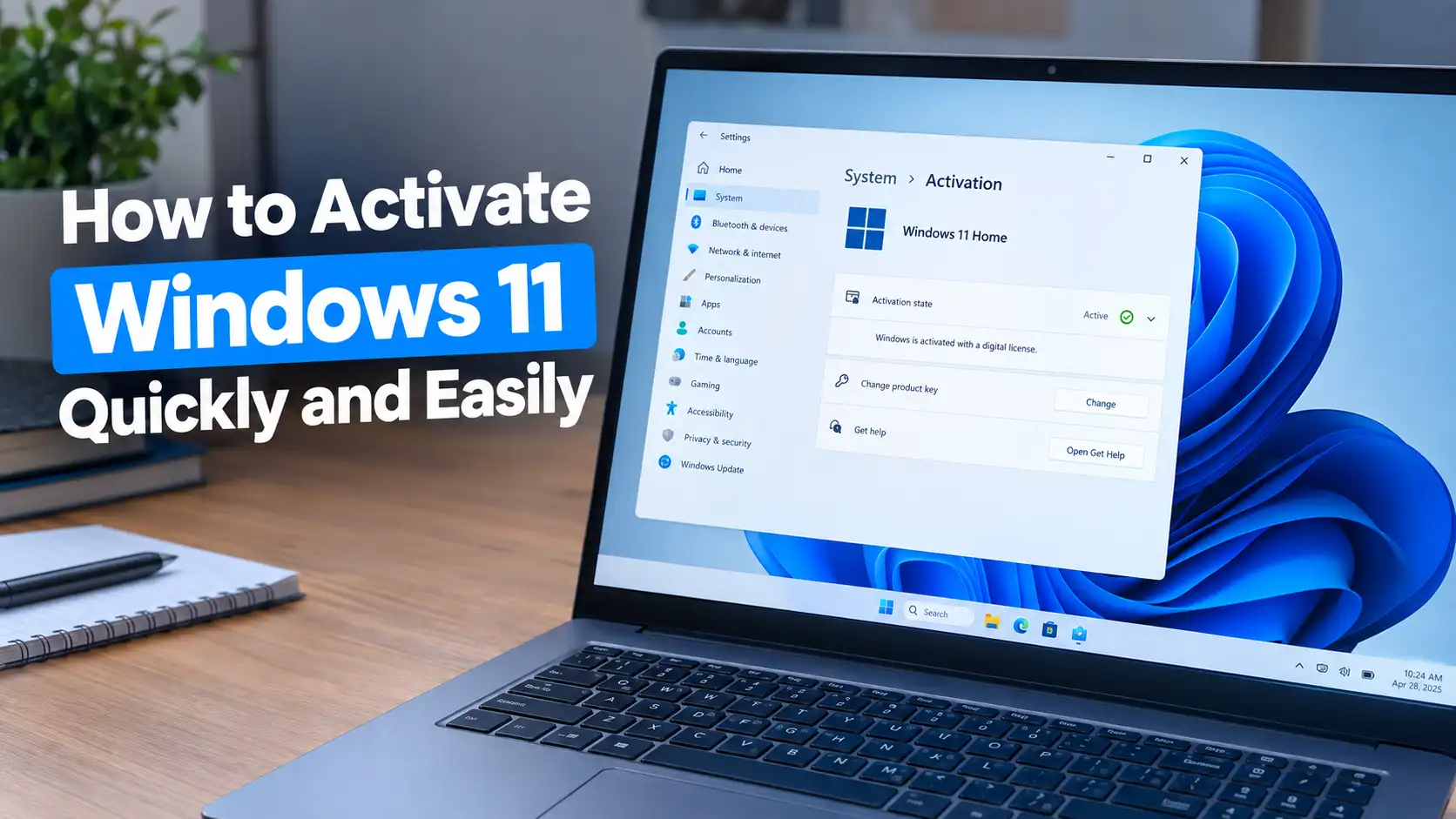
Windows 11 can run perfectly well on a newly installed PC, but activation is what confirms that your copy of Windows is properly licensed. If you have just installed Windows 11, upgraded your hardware, or are seeing an activation message on your desktop, you might be wondering what you actually need to do. Fortunately, the process is usually much simpler than it sounds.
In most cases, Windows 11 can be activated using either a digital license or a 25-character product key. If your PC previously had a genuine activated copy of Windows and you reinstall the same edition, you may not even need to enter a key manually. Windows can often recognize the existing license once the computer connects to the internet.
The tricky part is knowing which activation method applies to your PC. A computer purchased with Windows already installed may have a license tied to its hardware, while a retail copy may come with a product key. If you recently changed major hardware, such as the motherboard, the situation can be slightly different.
In this guide, we’ll walk through the easiest ways to activate Windows 11, how to check your current activation status, what to do after reinstalling Windows, and how to troubleshoot common activation problems. We’ll also look at whether Windows 11 can be activated without buying another license and why unofficial activator tools are best avoided.
Why Windows 11 Activation Matters
Windows activation is Microsoft’s way of verifying that the installed copy of Windows has a valid license. Activation connects the Windows installation with a digital license or product key, allowing Microsoft to confirm that the software is properly licensed. It isn’t simply an annoying notification that appears after installation; it is part of Microsoft’s licensing system.
For most users, activation is a one-time task rather than something they need to repeat regularly. Once Windows 11 is successfully activated, the activation status normally remains intact unless something significant changes, such as replacing the motherboard or installing a different Windows edition. That’s why checking your activation status early can save you from unnecessary troubleshooting later.
What Windows Activation Actually Does
Activation verifies that your Windows 11 installation has a valid license for the edition you’re running, such as Windows 11 Home or Windows 11 Pro. When the license is recognized, Windows records the activated state and you can continue using the operating system as a properly licensed installation.
Activation is also useful when you reinstall Windows. If your PC has a digital license associated with its hardware, Microsoft’s activation servers can often recognize the device after you reinstall the same edition and connect it to the internet. Think of the digital license like a digital ID card for your Windows installation: you don’t necessarily need to type the license information every time you reinstall the operating system.
Digital License vs. Product Key
There are two common ways to activate Windows 11: a digital license and a product key. A digital license doesn’t require you to enter a 25-character code during activation. Instead, the license is associated with your device and, in some cases, linked to your Microsoft account. This makes it especially convenient when reinstalling Windows on the same computer.
A product key is the traditional 25-character code used to activate Windows. It typically follows a format similar to XXXXX-XXXXX-XXXXX-XXXXX-XXXXX. If you purchased Windows separately or received a valid key with your PC, you can enter it through Windows Settings. The important thing is to use a legitimate key that matches the Windows edition installed on your computer.
Check Whether Windows 11 Is Already Activated
Before trying to activate Windows 11, check its current status first. You might be surprised to discover that Windows is already activated, especially if you bought a computer with Windows preinstalled or recently completed a clean installation. Trying to activate an already activated system is unnecessary and can make a simple situation seem more complicated than it really is.
Open the Activation Settings
The quickest way to check is through Settings. Open the Start menu, select Settings, then go to System and choose Activation. Windows will display the current activation status and provide additional information about the license associated with your installation.
If the page says Active or indicates that Windows is activated with a digital license, you don’t need to do anything else. If Windows shows that it isn’t activated, you’ll normally see an option to troubleshoot the issue or enter a product key, depending on your situation.
Understanding Your Activation Status
Windows 11 can display different activation messages depending on how your license is configured. A digital license may indicate that Windows is activated without requiring you to enter a product key. If activation is unsuccessful, Windows may display an error code or recommend running the Activation Troubleshooter.
Pay attention to the exact edition shown on the activation page as well. For example, a license for Windows 11 Home cannot normally be used to activate Windows 11 Pro. Installing the wrong edition is one of those small details that can turn a seemingly mysterious activation problem into a very straightforward one.
How to Activate Windows 11 With a Digital License
If your computer already has a valid digital license, activating Windows 11 can be remarkably easy. In many cases, you don’t need to hunt for a product key at all. The main requirement is that the installed Windows edition matches the license associated with your device.
Sign In With Your Microsoft Account
If your digital license is linked to your Microsoft account, signing in can make reactivation easier, particularly after reinstalling Windows or making certain hardware changes. Go to Settings → Accounts and sign in with the Microsoft account associated with your Windows license.
Once you’re signed in, return to Settings → System → Activation and check the activation status. If the device is connected to the internet and the correct Windows edition is installed, Windows may automatically activate using the digital license.
Connect Windows to the Internet
Windows needs an internet connection to communicate with Microsoft’s activation servers in many activation scenarios. Connect your PC to Wi-Fi or Ethernet and give Windows a moment to check the license automatically.
If activation doesn’t happen immediately, don’t panic. Restarting the computer and checking the Activation page again can sometimes help. If Windows still reports an activation problem, the next step is to identify the specific error rather than repeatedly attempting activation.
How to Activate Windows 11 With a Product Key
If you have a valid Windows 11 product key, activating your PC is straightforward. A product key is a 25-character code that confirms your license and tells Windows which edition you’re entitled to use. Before entering it, make sure the key belongs to the edition installed on your computer, such as Windows 11 Home or Windows 11 Pro. Using a genuine key that matches your edition is important because an otherwise valid key can still fail if it doesn’t correspond to the installed version.
You don’t need to reinstall Windows just because you have a product key. Windows 11 provides an activation section in Settings specifically for entering or changing the key. As long as your computer has an internet connection and the key is valid, Windows can communicate with Microsoft’s activation servers and complete the process without much fuss.
Open Change Product Key
Start by opening Settings from the Start menu, then go to System → Activation. Look for the option labeled Change product key and select it. Windows will open a small window where you can enter your 25-character license key.
Enter the characters carefully and click Next or Activate, depending on what Windows displays. You don’t need to manually type the hyphens if Windows formats the key automatically. If the key is valid and compatible with your installed edition, Windows should complete the activation process and update the activation status.
Enter Your 25-Character Product Key
A Windows product key contains 25 characters divided into five groups. Double-check every character before submitting it, especially if you’ve copied the key from an email, card, or purchase confirmation. A single incorrect character can cause activation to fail, and repeatedly entering random combinations won’t solve the problem.
If Windows rejects the key, check whether you installed the correct edition first. For example, entering a Windows 11 Pro key into Windows 11 Home may not produce the result you expect. Also make sure the key was obtained from a legitimate source. Cheap or suspicious keys advertised online can sometimes be invalid, already used, restricted to a particular licensing channel, or otherwise unsuitable for your installation.
How to Activate Windows 11 After Reinstalling
Reinstalling Windows 11 doesn’t necessarily mean you need to purchase another license. If the computer was previously activated with a digital license, Microsoft can often recognize the device after the same Windows edition is installed again. During installation, Windows may ask for a product key; if you know the PC already has a digital license, you can typically choose the option indicating that you don’t have a product key and continue with the installation.
After Windows finishes installing, connect the PC to the internet and open Settings → System → Activation. If you installed the same edition that was previously licensed, Windows can often reactivate automatically. This is one reason keeping track of your Windows edition is important before performing a clean installation.
When You Can Skip Entering a Product Key
If your PC already has a digital license, you may not need to enter a product key during a clean installation. Choosing the option to continue without a key allows Windows to complete the installation first, after which the operating system can check Microsoft’s activation servers.
This works best when you’re reinstalling the same edition on the same properly licensed device. For example, if the computer previously ran an activated copy of Windows 11 Home and you reinstall Windows 11 Home, the existing digital license may be recognized automatically. Skipping the key during setup does not magically create a license, though; the device still needs to have a legitimate license associated with it.
Make Sure You Install the Correct Windows Edition
The Windows edition you install matters more than many people realize. A digital license or product key is generally tied to a particular edition, so installing Windows 11 Pro on a machine licensed for Home can result in an activation problem. Before reinstalling Windows, check the edition currently installed under Settings → System → Activation or System Information.
If you’re reinstalling because of performance problems, corrupted system files, or other Windows issues, don’t change editions unnecessarily. Keeping the same edition makes automatic reactivation much more likely and saves you from having to troubleshoot an activation mismatch afterward.
How to Activate Windows 11 After a Hardware Change
Major hardware changes can occasionally affect Windows activation, particularly when you replace the motherboard. From Windows’ perspective, a major component change can make the computer appear sufficiently different from the device associated with the existing digital license. This doesn’t necessarily mean your license has disappeared, but Windows may need help recognizing that you’re still using a legitimately licensed installation.
If Windows becomes deactivated after a hardware upgrade, don’t immediately assume that you need to buy another license. First check Settings → System → Activation to see the exact message Windows provides. If your digital license is linked to your Microsoft account, the Activation Troubleshooter may be able to help you reactivate the installation.
Use the Activation Troubleshooter
Open Settings → System → Activation and look for the Troubleshoot option when Windows reports that it isn’t activated. The troubleshooter checks the activation configuration and can provide options when Windows detects a licensing problem.
For hardware-related activation issues, you may see an option indicating that you’ve recently changed hardware on this device. If available, follow the prompts and sign in with the Microsoft account associated with your digital license. Windows can then attempt to reconnect the license with the current hardware. If the troubleshooter cannot resolve the issue, the error message it provides can help identify what needs attention next.
How to Activate Windows 11 With a Product Key
If you have a valid Windows 11 product key, activating your PC is straightforward. A product key is a 25-character code that confirms your license and tells Windows which edition you’re entitled to use. Before entering it, make sure the key belongs to the edition installed on your computer, such as Windows 11 Home or Windows 11 Pro. Using a genuine key that matches your edition is important because an otherwise valid key can still fail if it doesn’t correspond to the installed version.
You don’t need to reinstall Windows just because you have a product key. Windows 11 provides an activation section in Settings specifically for entering or changing the key. As long as your computer has an internet connection and the key is valid, Windows can communicate with Microsoft’s activation servers and complete the process without much fuss.
Open Change Product Key
Start by opening Settings from the Start menu, then go to System → Activation. Look for the option labeled Change product key and select it. Windows will open a small window where you can enter your 25-character license key.
Enter the characters carefully and click Next or Activate, depending on what Windows displays. You don’t need to manually type the hyphens if Windows formats the key automatically. If the key is valid and compatible with your installed edition, Windows should complete the activation process and update the activation status.
Enter Your 25-Character Product Key
A Windows product key contains 25 characters divided into five groups. Double-check every character before submitting it, especially if you’ve copied the key from an email, card, or purchase confirmation. A single incorrect character can cause activation to fail, and repeatedly entering random combinations won’t solve the problem.
If Windows rejects the key, check whether you installed the correct edition first. For example, entering a Windows 11 Pro key into Windows 11 Home may not produce the result you expect. Also make sure the key was obtained from a legitimate source. Cheap or suspicious keys advertised online can sometimes be invalid, already used, restricted to a particular licensing channel, or otherwise unsuitable for your installation.
How to Activate Windows 11 After Reinstalling
Reinstalling Windows 11 doesn’t necessarily mean you need to purchase another license. If the computer was previously activated with a digital license, Microsoft can often recognize the device after the same Windows edition is installed again. During installation, Windows may ask for a product key; if you know the PC already has a digital license, you can typically choose the option indicating that you don’t have a product key and continue with the installation.
After Windows finishes installing, connect the PC to the internet and open Settings → System → Activation. If you installed the same edition that was previously licensed, Windows can often reactivate automatically. This is one reason keeping track of your Windows edition is important before performing a clean installation.
When You Can Skip Entering a Product Key
If your PC already has a digital license, you may not need to enter a product key during a clean installation. Choosing the option to continue without a key allows Windows to complete the installation first, after which the operating system can check Microsoft’s activation servers.
This works best when you’re reinstalling the same edition on the same properly licensed device. For example, if the computer previously ran an activated copy of Windows 11 Home and you reinstall Windows 11 Home, the existing digital license may be recognized automatically. Skipping the key during setup does not magically create a license, though; the device still needs to have a legitimate license associated with it.
Make Sure You Install the Correct Windows Edition
The Windows edition you install matters more than many people realize. A digital license or product key is generally tied to a particular edition, so installing Windows 11 Pro on a machine licensed for Home can result in an activation problem. Before reinstalling Windows, check the edition currently installed under Settings → System → Activation or System Information.
If you’re reinstalling because of performance problems, corrupted system files, or other Windows issues, don’t change editions unnecessarily. Keeping the same edition makes automatic reactivation much more likely and saves you from having to troubleshoot an activation mismatch afterward.
If you want to make your Windows PC cleaner and potentially improve its performance, check out How to Remove Windows 10 and 11 Bloatware Safely for a safe way to remove unnecessary apps.
How to Activate Windows 11 After a Hardware Change
Major hardware changes can occasionally affect Windows activation, particularly when you replace the motherboard. From Windows’ perspective, a major component change can make the computer appear sufficiently different from the device associated with the existing digital license. This doesn’t necessarily mean your license has disappeared, but Windows may need help recognizing that you’re still using a legitimately licensed installation.
If Windows becomes deactivated after a hardware upgrade, don’t immediately assume that you need to buy another license. First check Settings → System → Activation to see the exact message Windows provides. If your digital license is linked to your Microsoft account, the Activation Troubleshooter may be able to help you reactivate the installation.
Use the Activation Troubleshooter
Open Settings → System → Activation and look for the Troubleshoot option when Windows reports that it isn’t activated. The troubleshooter checks the activation configuration and can provide options when Windows detects a licensing problem.
For hardware-related activation issues, you may see an option indicating that you’ve recently changed hardware on this device. If available, follow the prompts and sign in with the Microsoft account associated with your digital license. Windows can then attempt to reconnect the license with the current hardware. If the troubleshooter cannot resolve the issue, the error message it provides can help identify what needs attention next.
What to Do When Windows 11 Won’t Activate
Sometimes Windows 11 refuses to activate even when you have a legitimate license. The good news is that an activation failure doesn’t automatically mean your license is invalid. Internet problems, incorrect system editions, Microsoft account issues, hardware changes, or temporary activation-server problems can all get in the way.
Instead of repeatedly entering the same product key, start by checking the activation message and any error code shown under Settings → System → Activation. The error can provide a useful clue about what’s actually wrong. Once you know the cause, fixing the problem is usually much easier than blindly trying different activation methods.
Check Your Internet Connection
Windows needs internet access for many activation scenarios because the system has to communicate with Microsoft’s activation servers. If your connection is unstable, restricted, or completely offline, activation may fail even when your license information is perfectly valid. Try opening a few websites first to confirm that your connection is working normally.
If you’re connected through a VPN, proxy, or unusual network configuration, temporarily disabling it can also help determine whether the connection is interfering with activation. After restoring a stable connection, return to the Activation page and check again. You don’t necessarily need a fast connection; what matters is having a reliable connection that allows Windows to communicate with Microsoft’s services.
Verify Your Windows Edition
One of the easiest activation problems to overlook is installing the wrong Windows edition. A license for Windows 11 Home is not interchangeable with a Windows 11 Pro license simply because both versions belong to the same operating system family. If the edition doesn’t match the license, Windows can reject an otherwise genuine activation method.
Check your installed edition under Settings → System → Activation and compare it with the edition associated with your digital license or product key. If you recently reinstalled Windows, think back to which edition you selected during setup. Correcting an edition mismatch can be much simpler than searching for another product key.
Run the Activation Troubleshooter
Windows 11 includes an Activation Troubleshooter designed to identify certain licensing and activation problems automatically. You can access it from Settings → System → Activation when the troubleshooting option is available. Follow the instructions shown on screen and allow Windows to check your activation configuration.
The troubleshooter is particularly useful after a significant hardware change or when Windows suddenly reports that it isn’t activated even though the device was previously licensed. If your license is associated with a Microsoft account, make sure you’re signed in with the correct account before running the troubleshooting process. If Windows still can’t activate, keep the displayed error code because it can point toward the next solution.
Can You Activate Windows 11 Without a Product Key?
Yes, you can activate Windows 11 without manually entering a product key if the PC has a valid digital license. This is one of the biggest advantages of Microsoft’s digital licensing system. A device that has already been legitimately licensed can often reactivate after reinstalling the same Windows edition once it connects to the internet. In this situation, there is no need to search your old emails for a 25-character code that you may not even have.
However, skipping the product key during installation does not mean Windows becomes permanently activated for free. The computer still needs a legitimate license associated with the device. If you’re installing Windows 11 on a computer that has never had a valid license, you’ll generally need to obtain one through an authorized purchase or another legitimate licensing route.
Should You Use Windows Activators or Cracks?
You may come across websites offering Windows 11 activators, cracks, unofficial KMS tools, or scripts that promise instant activation. They can look tempting because they claim to solve the problem in a few clicks, but using these tools is a bad trade-off. Apart from violating Microsoft’s licensing terms, unofficial activation software can modify Windows system components or introduce unwanted software to your computer.
There’s also a security problem. An activation tool downloaded from an unknown website is effectively software you’re giving permission to run with significant access to your system. You can’t easily know whether it only changes activation-related files or also installs malware, unwanted services, password stealers, or other malicious components. If your goal is a stable Windows installation, using a genuine digital license or product key is far safer than taking a shortcut that could create an even bigger headache.
How to Get a Genuine Windows 11 License
If your PC doesn’t have a valid license, the safest approach is to purchase Windows through Microsoft or an authorized retailer. This gives you a legitimate activation method and reduces the risk of receiving a key that has already been used, is improperly sourced, or doesn’t match your Windows edition. Be especially cautious with unusually cheap keys from unknown marketplaces; a bargain that looks too good can sometimes come with licensing or activation problems later.
Before purchasing anything, check which edition you actually need. If you only need the standard Windows experience for browsing, schoolwork, office tasks, gaming, and everyday use, Windows 11 Home may be sufficient. Windows 11 Pro includes additional features aimed more at professional and business users. Buying the correct edition from the beginning is much easier than discovering afterward that your license doesn’t match your installation.
Tips to Keep Windows 11 Activated
Once Windows 11 is activated, there isn’t much maintenance required. Still, a few simple habits can help prevent unnecessary activation problems later. Keep Windows updated, avoid modifying important licensing components, and make sure you know whether your license is a digital license or a product key. If your digital license is linked to your Microsoft account, keeping that account accessible can also make reactivation easier after certain system changes.
It’s also a good idea to record your genuine product key somewhere secure if you have one. Don’t post it publicly, send it to strangers, or store it in an easily accessible text file on a shared computer. If you upgrade your hardware, particularly the motherboard, check your activation status afterward rather than waiting until Windows starts displaying repeated activation notifications. A quick check can save you a surprisingly annoying troubleshooting session.
Keep Your Microsoft Account Connected
If your Windows license is associated with a Microsoft account, staying signed in can make the activation process easier when you need to troubleshoot or reactivate Windows. This is especially useful if you’ve made a significant hardware change and Windows needs to verify the existing digital license.
That doesn’t mean you need to use a Microsoft account for every task on your PC. The important part is knowing which account is associated with your digital license and having access to it when activation troubleshooting becomes necessary.
Avoid Unofficial Activation Changes
Once Windows is activated properly, avoid scripts, cracks, unauthorized KMS tools, and other software that claims to manipulate Windows activation. These tools can interfere with system components that Windows depends on and may cause activation problems instead of fixing them.
If an activation issue appears after using one of these tools, troubleshooting can become considerably harder because you may no longer know which Windows components have been modified. A clean, legitimate installation is generally much easier to maintain in the long run.
Conclusion
Activating Windows 11 doesn’t have to be complicated. If your computer already has a digital license, Windows may activate automatically after connecting to the internet. If you have a legitimate product key, you can enter it through Settings → System → Activation and let Windows verify the license.
When activation fails, don’t immediately assume that you need to buy another copy of Windows. Check your activation status, verify that the Windows edition matches your license, confirm that your internet connection is working, and use the Activation Troubleshooter when appropriate. These simple checks can resolve many common problems.
Most importantly, stick with legitimate activation methods. A genuine digital license or product key gives you a much more reliable Windows experience than an unofficial activator or crack. Once Windows 11 is properly activated, you can get back to what you actually wanted to do with your PC instead of staring at activation notifications.
FAQs About Windows 11 Activation
1. Can I activate Windows 11 for free?
You can activate Windows 11 without manually entering a product key if your computer already has a valid digital license. This commonly happens with PCs that originally came with a genuine copy of Windows or were previously activated. However, if the computer doesn’t have a valid license, you shouldn’t rely on unofficial activators or cracks to bypass activation. You need a legitimate license or product key to properly activate an unlicensed installation.
2. How do I know if Windows 11 is activated?
Open Settings → System → Activation to check your current activation status. Windows will tell you whether the installation is activated and may indicate whether activation is associated with a digital license. If there’s a problem, this page can also display troubleshooting options or an activation error that helps explain what went wrong.
3. Can I reinstall Windows 11 without a product key?
Yes, you can often reinstall Windows 11 without entering a product key during setup if the computer already has a valid digital license. Select the appropriate option when Windows asks for a product key and install the same edition that was previously licensed. After installation, connect to the internet and allow Windows to check Microsoft’s activation servers for the existing license.
4. Why did Windows become deactivated after changing hardware?
A major hardware change, particularly replacing the motherboard, can sometimes cause Windows to lose track of the digital license associated with the previous hardware configuration. If this happens, open the Activation settings and use the Activation Troubleshooter if it is available. If your digital license is linked to your Microsoft account, signing in with the associated account can help Windows identify the license and provide a reactivation option.
5. Is it safe to use Windows 11 activator tools?
Unofficial Windows activator tools are not recommended. Besides bypassing Microsoft’s licensing requirements, these programs can modify system files or contain malware and other unwanted software. A genuine digital license or product key is the safer option because it provides proper activation without introducing potentially risky software into your Windows installation.