

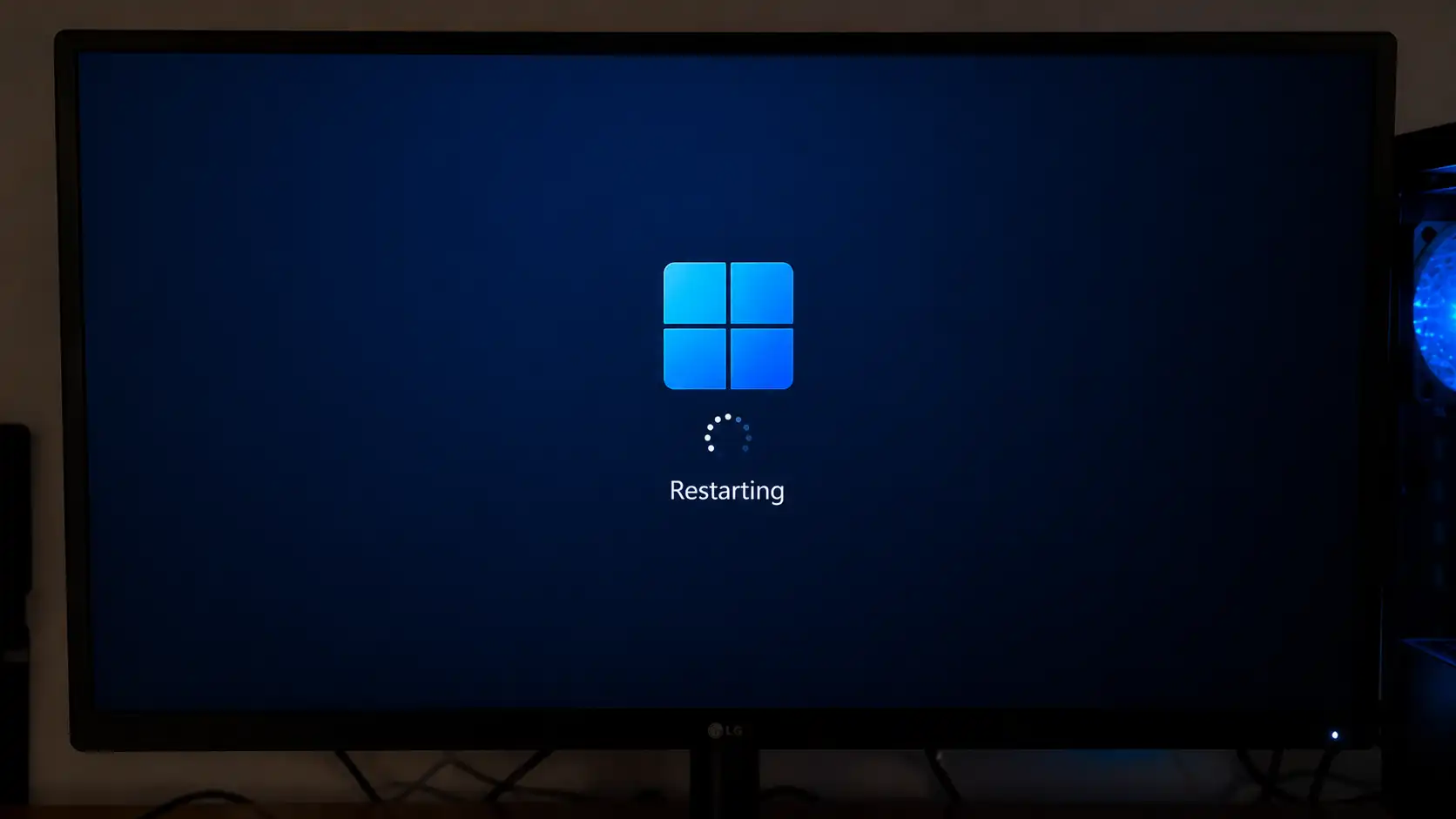
Ever been in the middle of something important, maybe editing a file, playing a game, or watching a video, and suddenly your Windows 11 PC just restarts? No warning, no explanation, no time to save your work. It just happens. One second everything is fine, the next second you are staring at the boot screen again.
That kind of issue is not only annoying, it can also be risky. Imagine losing unsaved work or dealing with corrupted files because of sudden shutdowns. Over time, repeated unexpected restarts can even damage your system stability further.
The good news is this problem is very common, and more importantly, it is fixable. There is always a reason behind it. Your PC is not randomly deciding to restart for fun. It is reacting to something going wrong, either in software or hardware.
In this guide, we are going to dig deep into the real causes and solutions. Not just surface level tips, but actual fixes that work. By the end, you will not only solve the issue but also understand why it happened in the first place.
Why Your Windows 11 PC Keeps Restarting
Think of your PC like a human body. If something goes wrong internally, it reacts. A restart is like your system trying to reset itself to avoid further damage.
The causes generally fall into two main categories, software issues and hardware problems. Understanding which side your problem belongs to is the first step to solving it.
Software Related Causes
Corrupted System Files
Windows is made up of thousands of system files that work together like gears in a machine. If one gear breaks or goes out of place, the whole system can behave unpredictably.
Corrupted files can happen because of:
- Improper shutdowns
- Failed updates
- Malware infections
- Disk errors
When Windows detects something seriously wrong, it may trigger a restart to protect itself. Unfortunately, this often leads to a loop if the root issue is not fixed.
Faulty Windows Updates
Windows updates are meant to improve performance and security, but they are not always perfect. Sometimes an update introduces bugs that cause system instability.
You might notice restarts happening:
- Right after installing an update
- During idle usage
- When opening certain apps
This is a strong sign that the update may be the culprit. In some cases, even official updates can conflict with drivers or existing system configurations.
Hardware Related Causes
Overheating Issues
Overheating is one of the most common reasons behind random restarts. Your CPU and GPU generate heat when working, especially during heavy tasks like gaming or video editing.
If the temperature gets too high, your system will automatically shut down or restart to prevent permanent damage.
Common causes of overheating include:
- Dust buildup inside the PC
- Poor airflow
- Old or dried thermal paste
- Faulty cooling fans
If your PC feels hot or the fan sounds unusually loud, this could be the issue.
Faulty Power Supply
Power issues are often overlooked but can be a major cause. A weak or failing power supply unit can deliver unstable power to your components.
Even a tiny drop in voltage can force your system to restart instantly.
Signs of power related problems include:
- Random restarts without warning
- System shutting off under load
- No error messages at all
Quick Fixes You Should Try First
Before jumping into complex solutions, it is always smart to try the simple ones. These quick fixes often solve the issue without much effort.
Disable Automatic Restart
Windows has a feature that automatically restarts your PC when a system error occurs. While this is useful in some cases, it hides the actual problem from you.
By disabling it, you allow the system to show an error message instead of restarting immediately.
Steps:
- Open System Properties
- Go to Advanced > Startup and Recovery
- Uncheck Automatically restart
Once disabled, you might see a blue screen with an error code. That code is extremely helpful for diagnosing the issue.
Check for Windows Updates
It might sound ironic, but updating your system can fix problems caused by previous updates.
Make sure:
- Your system is fully updated
- Optional updates are installed
- No updates are stuck or failed
Also, restarting your PC after updates ensures everything is applied correctly.
Advanced Troubleshooting Methods
If the problem continues, it is time to go deeper. These methods require a bit more attention but are very effective.
Run System File Checker SFC
This tool scans your system for corrupted files and repairs them automatically.
Open Command Prompt as administrator and run:
sfc /scannowThe scan may take some time, so be patient. Once completed, it will either fix the issues or tell you if further action is needed.
Use DISM Tool
If SFC cannot fix everything, DISM is the next step. It repairs the Windows image itself.
Run this command:
DISM /Online /Cleanup-Image /RestoreHealthThis tool connects to Windows Update servers to replace damaged files with fresh copies. It is especially useful when system corruption is severe.
Check Event Viewer Logs
Event Viewer is one of the most powerful built in tools in Windows, yet many users ignore it.
To use it:
- Open Event Viewer
- Go to Windows Logs > System
- Look for Critical or Error entries
Pay attention to events labeled Kernel Power. These usually indicate unexpected shutdowns or restarts.
Each log entry includes details like time, error code, and possible cause. It is like reading your system’s history.
Fixing Driver Issues
Drivers are the bridge between your hardware and your operating system. If that bridge is unstable, everything else becomes unstable too.
Update Device Drivers
Outdated drivers can cause compatibility issues, especially after a Windows update.
Focus on updating:
- Graphics drivers
- Motherboard chipset drivers
- Network drivers
- Storage controllers
You can update them through Device Manager or download the latest versions directly from the manufacturer’s website.
Roll Back Problematic Drivers
Sometimes a new driver update introduces bugs. If your issue started after updating a driver, rolling it back might fix it.
Steps:
- Open Device Manager
- Right click the device
- Select Properties
- Go to Driver tab
- Click Roll Back Driver
This restores the previous stable version.
Resolving Hardware Problems
Check CPU Temperature
Monitoring your CPU temperature is crucial. You can use tools like HWMonitor or Core Temp.
Normal temperatures:
- Idle: 30 to 50 degrees Celsius
- Load: 60 to 85 degrees Celsius
If your CPU exceeds safe limits, it can trigger restarts.
To fix overheating:
- Clean dust from fans and vents
- Improve case airflow
- Replace thermal paste
- Upgrade cooling system
Test RAM and Storage
Faulty RAM is a silent troublemaker. It can cause crashes, freezes, and restarts without warning.
Run Windows Memory Diagnostic:
- Search for it in the Start menu
- Restart and scan
For storage:
- Use built in disk check tools
- Monitor SSD health
Bad sectors or failing drives can disrupt system stability.
BIOS and Firmware Fixes
Update BIOS Safely
Your BIOS controls how hardware interacts with your system. An outdated BIOS can cause compatibility issues.
Updating BIOS can fix:
- Stability problems
- Hardware detection issues
- Performance inconsistencies
Always follow your motherboard manufacturer’s instructions carefully.
For a related issue, check out Can’t Access a Website? Fix Your Connection Is Not Private Now to quickly resolve browser security errors and regain safe access to your favorite sites.
Reset BIOS Settings
If you have changed settings like overclocking, your system might become unstable.
Resetting BIOS to default settings can eliminate these issues instantly.
This is especially important if:
- You recently tweaked performance settings
- Your system became unstable afterward
Malware and Security Checks
Run Full Virus Scan
Malware can do more than just steal data. Some types of malicious software intentionally disrupt system stability.
Run a full system scan using:
- Windows Security
- Trusted antivirus tools
Make sure your virus definitions are up to date before scanning.
When to Reset or Reinstall Windows
If you have tried everything and the problem still persists, it might be time for a fresh start.
System Reset vs Clean Install
System Reset:
- Keeps personal files
- Reinstalls Windows
- Removes apps
Clean Install:
- Deletes everything
- Installs a fresh copy of Windows
- Provides the cleanest environment
A clean install is often the most effective solution for deep system issues.
Preventing Future Restart Issues
Maintenance Tips
Prevention is always better than fixing problems later.
Here are some habits to keep your system stable:
- Keep your system and drivers updated
- Clean your PC regularly
- Avoid installing unknown or pirated software
- Monitor system temperatures
- Use a reliable power source
Treat your PC like a machine that needs regular care, not something you only fix when it breaks.
Conclusion
Random restarts in Windows 11 are never truly random. They are warning signs that something is not right.
Whether it is corrupted system files, overheating, driver conflicts, or hardware failure, there is always a root cause behind it.
The key is to approach the problem step by step. Start with simple fixes, then move into deeper troubleshooting if needed. Do not rush. Each step helps narrow down the cause.
Once you identify and fix the issue, your system will become stable again. No more sudden restarts, no more lost work, and no more frustration.
And honestly, once you understand how all these pieces work together, you will feel much more in control of your PC.
FAQs
1. Why does my Windows 11 PC restart without warning?
This usually happens due to overheating, unstable drivers, corrupted system files, or power related issues. Identifying the exact cause requires checking logs and system behavior.
2. Can a virus cause random restarts?
Yes, certain malware can disrupt system processes and force restarts. Running a full system scan is always recommended.
3. How do I check what caused a restart?
You can use Event Viewer to analyze system logs and look for critical errors such as Kernel Power events.
4. Is overheating a common cause of restarts?
Yes, overheating is one of the most common causes, especially in systems with poor cooling or dust buildup.
5. Should I reinstall Windows if nothing works?
If all troubleshooting steps fail, reinstalling Windows is often the most reliable way to fix deep system issues and restore stability.