

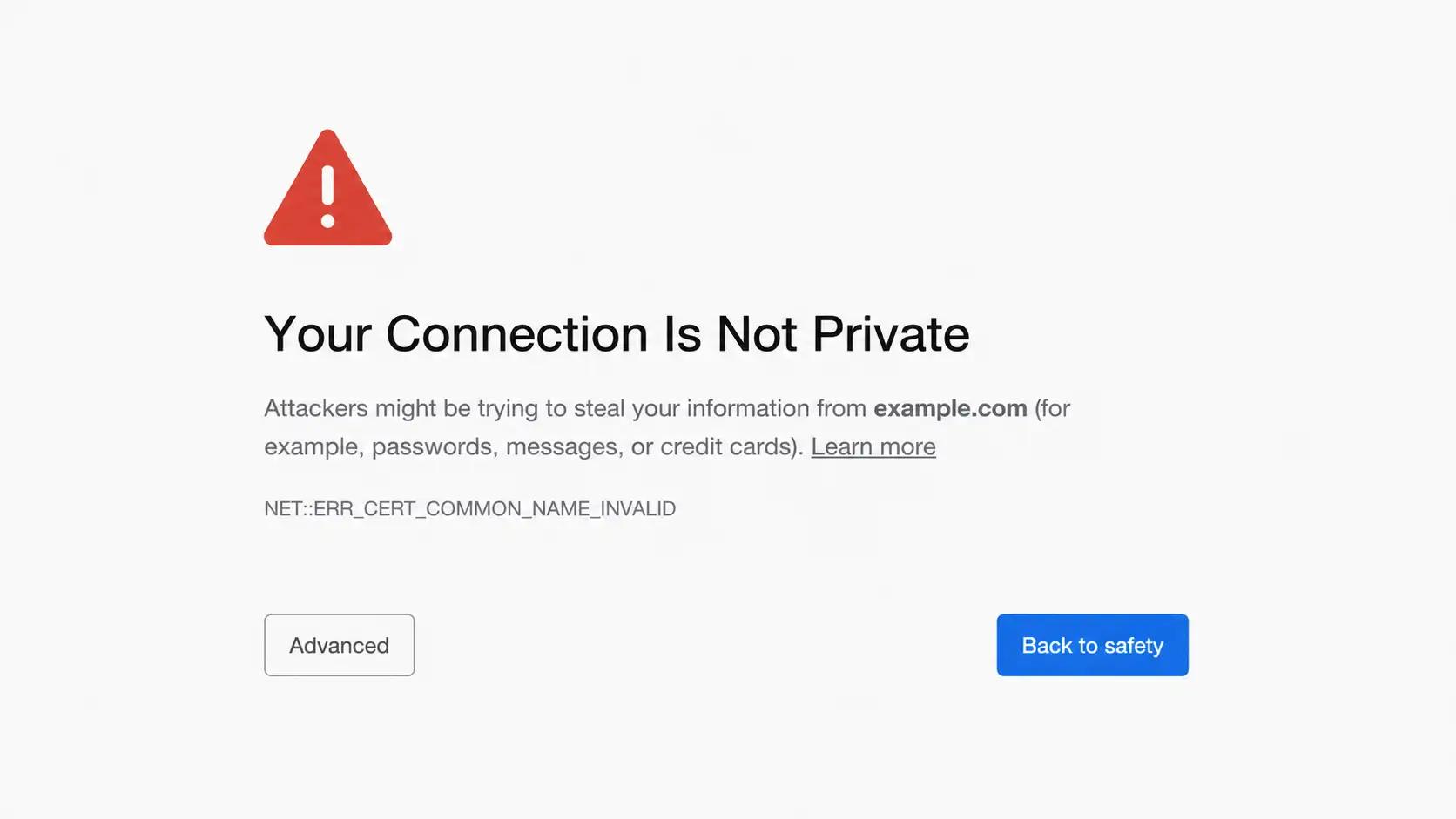
Ever tried opening a website and suddenly got hit with a warning that says “Your connection is not private”? It feels like reaching a door you’ve opened a hundred times before… and now it won’t budge. Worse, your browser throws in a scary message about attackers possibly stealing your information. Not exactly comforting.
Here’s the thing though: this error is incredibly common, and in most cases, it’s not as dangerous as it sounds. In fact, it’s often caused by small misconfigurations either on your device or the website itself. The message is less about something being wrong and more about your browser being extra cautious.
Think of it like airport security. Even if you’re harmless, they’ll still scan your bag just to be sure. That’s exactly what your browser is doing here.
In this guide, we’ll walk through everything you need to know—what this error actually means, why it happens, and most importantly, how to fix it quickly without losing your sanity.
What Does “Your Connection Is Not Private” Mean?
At its core, this error is about trust. Your browser is telling you it cannot verify that the website you’re trying to visit is safe.
When you access a website, your browser checks its security certificate. If anything doesn’t match expectations, the browser blocks access. It’s basically saying, “I don’t fully trust this connection, so I’m stepping in.”
Understanding SSL Certificates
SSL (Secure Sockets Layer) certificates are what make websites secure. You’ll notice secure websites start with https instead of http. That extra “s” stands for secure.
When a site has a valid SSL certificate, it means:
- Data sent between you and the site is encrypted
- Hackers can’t easily intercept your information
- The website’s identity has been verified
Imagine sending a letter inside a locked safe instead of a transparent envelope. That’s what SSL does.
Now, if that certificate is expired, invalid, or incorrectly installed, your browser immediately becomes suspicious—and that’s when the warning appears.
Why Browsers Block Websites
Browsers are designed to protect users from:
- Phishing attacks
- Data interception
- Fake or impersonated websites
If a certificate doesn’t match the domain or fails validation, your browser treats it as a potential threat. Even if the site is harmless, the browser won’t take risks.
That’s why this error can show up even on legitimate websites—it’s not always about danger, but about uncertainty.
Common Causes of the Error
Understanding the cause is half the battle. Once you know what’s triggering the error, fixing it becomes much easier.
Incorrect Date and Time Settings
This might sound trivial, but it’s one of the most common reasons. SSL certificates rely on accurate time validation.
If your device thinks it’s 2022 while it’s actually 2026, certificates may appear expired or not yet valid. That mismatch alone can trigger the warning.
Expired SSL Certificate
Sometimes the issue lies entirely with the website. SSL certificates need to be renewed periodically.
If the website owner forgets to renew it, your browser will flag the site as unsafe—even if everything else is fine.
Public Wi-Fi Risks
Public Wi-Fi networks, like those in cafes or airports, often use additional security layers or login portals. These can interfere with SSL verification.
In some cases, attackers may even exploit public networks to intercept traffic, which is exactly what your browser is trying to prevent.
Browser Cache Issues
Your browser stores temporary data to load websites faster. But sometimes, this stored data becomes outdated or corrupted.
When that happens, your browser may incorrectly interpret a secure site as unsafe.
Quick Fixes You Can Try Immediately
Before diving into complex solutions, try these quick fixes. You might solve the problem in less than a minute.
Reload the Page
It sounds too simple, but it works surprisingly often. A temporary glitch or network hiccup might be the cause.
Try Incognito Mode
Incognito mode disables extensions and ignores cached data. If the site loads fine here, the issue is likely with your browser settings or extensions.
Clear Browser Cache
Clearing cache removes outdated files that could be causing conflicts.
Yes, you’ll need to log back into some sites—but it’s often worth it.
Advanced Solutions for Persistent Errors
If the basic fixes didn’t work, it’s time to go deeper.
Adjust System Date and Time
Your system clock should always be accurate.
Windows Instructions
Go to Settings → Time & Language → enable automatic time and time zone.
Mac Instructions
Open System Settings → Date & Time → turn on automatic time synchronization.
Even a few minutes of mismatch can cause SSL validation failures.
Disable Antivirus SSL Scanning
Some antivirus software scans encrypted connections to protect you. Ironically, this can interfere with SSL certificates.
Try disabling SSL scanning temporarily and see if the issue disappears. If it does, you’ve found the culprit.
Reset Network Settings
Network misconfigurations can also cause this error.
Resetting your network:
- Clears DNS cache
- Removes faulty configurations
- Re-establishes clean connections
It’s like restarting your internet from scratch.
Fixing the Error on Different Browsers
Each browser has its own quirks, so fixes may vary slightly.
Google Chrome Fix
Chrome is the most common browser, so this error shows up here a lot.
Steps you can try:
- Clear cache and cookies
- Check system time
- Flush DNS using chrome://net-internals/#dns
Mozilla Firefox Fix
Firefox is stricter with certificates in some cases.
Go to:
Settings → Privacy & Security → Clear Data
You can also check certificate authorities if needed.
Microsoft Edge Fix
Since Edge is Chromium-based, it behaves similarly to Chrome.
Clearing cache and resetting settings usually solves the issue.
Mobile Device Solutions
Mobile devices aren’t immune to this problem.
Android Fix
On Android:
- Clear Chrome cache
- Ensure automatic date and time
- Update your system
Sometimes, outdated Android versions cause compatibility issues with newer SSL standards.
iPhone Fix
On iPhone:
- Clear Safari data
- Enable automatic time settings
- Restart your device
Simple steps, but very effective.
When It’s Not Your Fault
Here’s the reality: sometimes, you can’t fix it—and that’s okay.
Website Server Issues
If the website has a broken or expired SSL certificate, there’s nothing you can do on your end.
Your best option? Wait for the site owner to fix it.
ISP Restrictions
In some cases, your internet provider may block or filter certain websites. This can interfere with SSL validation.
Switching networks or using a VPN can sometimes bypass this issue.
If you’re also dealing with another frustrating issue like random restarts, check out this guide: Your Windows 11 PC Restarting by Itself? Here’s the Real Fix.
Security Risks: Should You Proceed Anyway?
You’ll often see a button like “Proceed anyway”. It’s tempting to click it, especially if you need access quickly.
But should you?
When It’s Safe
It’s generally safe if:
- You trust the website
- You’re not entering sensitive data
- You understand the risk
For example, accessing your own test website.
When to Avoid
Avoid proceeding if:
- The site looks suspicious
- It asks for passwords or payment details
- You’re on public Wi-Fi
That’s how many phishing attacks work—by tricking users into ignoring warnings.
Preventing Future Errors
Want to avoid this headache in the future? A few habits can go a long way.
Keep Your System Updated
Updates aren’t just about new features—they fix security issues and improve compatibility.
Running outdated software is like using an old lock on a modern door.
Use Trusted Networks
Stick to networks you trust. If you must use public Wi-Fi, use a VPN to encrypt your connection.
Install Reliable Antivirus
A good antivirus should protect you without interfering with secure connections.
Avoid overly aggressive security tools that break SSL verification.
Conclusion
The “Your connection is not private” error might look intimidating at first, but it’s usually just your browser doing its job—protecting you from potential risks. Whether it’s caused by incorrect system time, browser cache issues, network problems, or even a website’s expired certificate, most solutions are quick and easy once you know where to look.
Instead of panicking when you see this warning, treat it as a signal. It’s your browser asking you to double-check the situation. And now that you understand what’s behind it, you’re in full control. You can troubleshoot it confidently, fix it efficiently, and even prevent it from happening again in the future.
FAQs
1. Why does this error appear suddenly?
It can appear due to changes in your system time, browser cache, network settings, or a website’s SSL certificate expiring.
2. Can I ignore the warning and continue?
Yes, but only if you trust the website and you’re not entering sensitive information.
3. Does this mean my device is hacked?
No, it usually indicates a configuration or certificate issue—not a security breach.
4. How do I fix this error permanently?
Keep your system updated, use secure networks, maintain correct time settings, and clear your browser cache regularly.
5. Why does it only happen on certain websites?
Because those websites may have expired, misconfigured, or invalid SSL certificates, which triggers the warning.