

A cluttered laptop can quickly become frustrating to use. Over time, your Desktop, Downloads, and Documents folders can fill up with screenshots, work files, school assignments, photos, videos, and countless other items. When everything is saved in one place without any organization, finding a single file can take much longer than it should. What starts as a few random documents can eventually turn into hundreds of files scattered across your laptop, making even simple tasks feel more complicated.
Fortunately, organizing your files doesn’t require any special software or technical skills. One of the easiest and most effective solutions is creating folders. A folder acts like a digital container that keeps related files together, making them much easier to locate later. Whether you’re organizing personal documents, work projects, or family photos, creating folders helps keep everything neat and accessible.
The best part is that creating a new folder only takes a few seconds. Modern operating systems like Windows 11, Windows 10, and macOS all provide simple ways to create folders using either your mouse or keyboard. Once you learn these methods, organizing your files becomes a natural habit that saves time and reduces unnecessary clutter.
In this guide, you’ll learn the easiest ways to create a new folder on your laptop step by step. We’ll also cover useful organization tips, common mistakes to avoid, and practical techniques that can help you manage your files more efficiently. By the end of this article, you’ll be able to keep your laptop organized and spend less time searching for important documents.
Why Folders Matter on Your Laptop
At first, creating folders may seem like a small habit that doesn’t make much of a difference. After all, you can always use your laptop’s search feature to locate a file. While that’s true, relying on search alone isn’t always the most efficient approach. As your collection of files grows larger, keeping everything in one location becomes increasingly difficult to manage. That’s why folders remain one of the simplest and most effective tools for maintaining an organized laptop.
Think of folders as digital filing cabinets. Instead of placing every document, photo, and video into one giant pile, you sort them into clearly labeled categories. This simple organization method makes it easier to find what you need, reduces desktop clutter, and creates a cleaner workspace. Whether you use your laptop for work, school, or entertainment, a well-organized folder structure can make everyday tasks much more convenient.
Keeping Files Organized
Creating folders allows you to separate different types of files into logical categories. Instead of saving everything to your Desktop or Downloads folder, you can create dedicated folders for documents, pictures, videos, music, software, or personal projects. This structure helps prevent files from becoming mixed together and makes navigation much more straightforward.
For example, you might create one folder for work documents, another for school assignments, and another for vacation photos. Within those folders, you can even add subfolders to organize files by project, subject, or year. As your collection grows, this layered organization keeps everything easy to manage without becoming overwhelming.
Folders also make it easier to back up important files. Rather than searching your entire laptop for documents you want to save, you can simply copy an entire folder to cloud storage or an external drive. This not only saves time but also reduces the chance of forgetting important files during the backup process.
Good organization becomes even more valuable if multiple people use the same laptop. Separate folders for each user help keep personal files private while preventing important documents from getting mixed together. Even if you’re the only person using your laptop, giving every file a proper place makes daily computer use much more enjoyable.
Saving Time Every Day
One of the biggest benefits of using folders is the amount of time they can save. Searching through hundreds of files every time you need a document quickly becomes frustrating. Even if your operating system includes a powerful search function, it’s often faster to open a well-organized folder than to perform a search and sort through multiple results.
Imagine you’re preparing for an important meeting and need to find last month’s presentation. If your files are neatly organized, you can simply open your “Work” folder, then your “Presentations” folder, and locate the file within seconds. Without folders, you might spend several minutes scrolling through Downloads or searching your Desktop for the correct document.
Folders also improve productivity by reducing distractions. A desktop covered with dozens of random icons can feel cluttered and overwhelming, while a clean desktop with only a few organized folders creates a more focused workspace. Small improvements like this can make your laptop feel much easier to use throughout the day.
In addition, organized folders simplify file sharing. If someone asks you to send an entire project, you can attach one folder instead of locating each individual file. This reduces the chance of missing important documents and makes collaboration much more efficient.
Different Ways to Create a New Folder
One of the great things about modern operating systems is that they offer several ways to complete the same task. Creating a new folder is no exception. Whether you prefer using your mouse, keyboard shortcuts, or toolbar buttons, there’s a method that matches your workflow. Learning multiple techniques can also help you work more efficiently, especially if you spend a lot of time organizing files.
Beginners often find the right-click menu the easiest because it clearly displays every available option. More experienced users may prefer keyboard shortcuts since they eliminate extra mouse clicks and speed up repetitive tasks. Meanwhile, the File Explorer toolbar offers a simple visual option that’s easy to access, especially in Windows 11. Regardless of which method you choose, each one creates the same folder and takes only a few seconds to complete.
Method 1: Right-Click Menu
The right-click menu is the most popular way to create a new folder because it’s simple and easy to understand. Almost every Windows user has used this method at some point, making it a great choice for beginners. Since all the available options appear in a menu, you don’t have to memorize keyboard shortcuts or navigate through multiple settings.
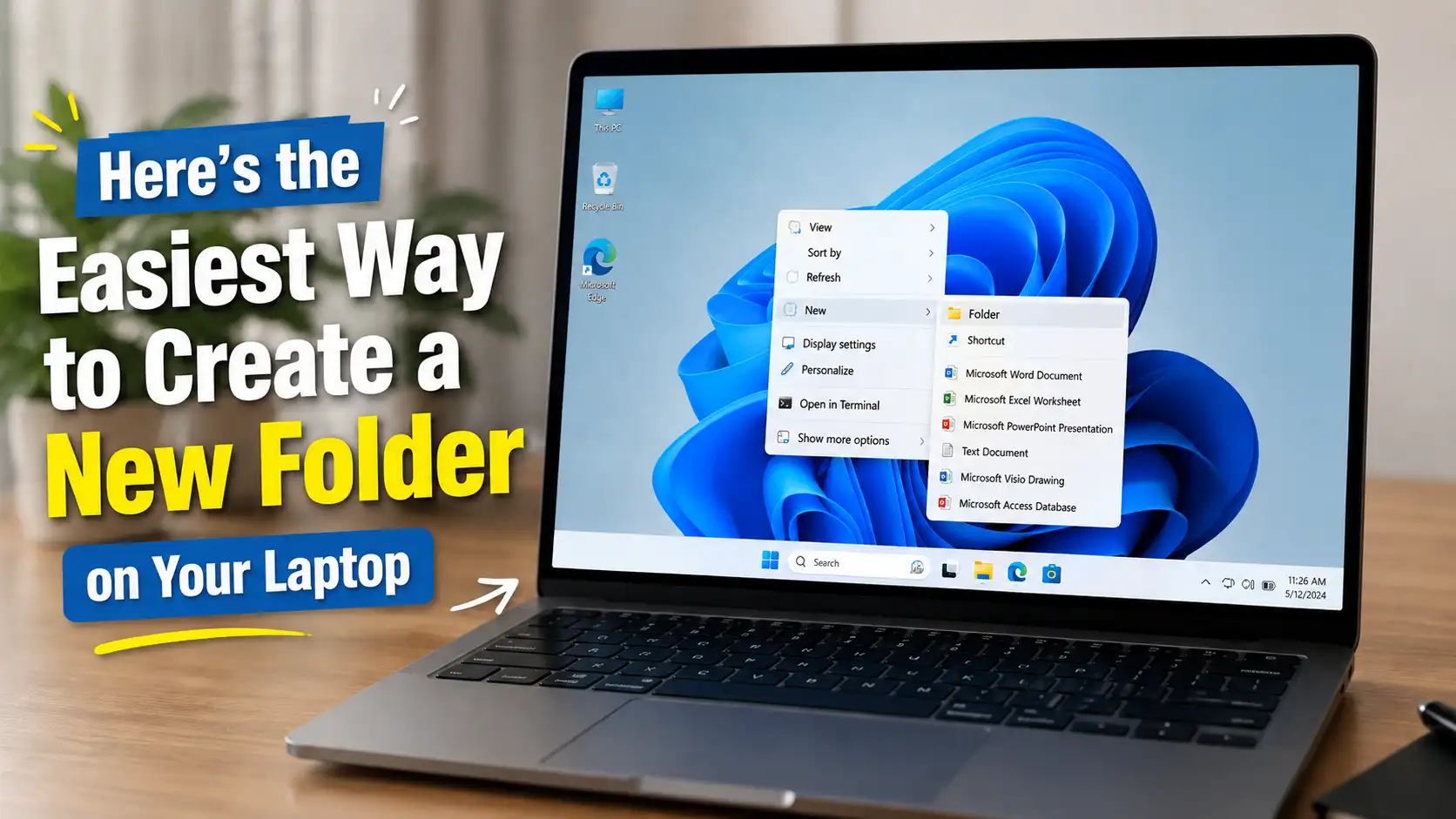
To create a folder using this method, open File Explorer and browse to the location where you’d like the folder to appear. This could be your Desktop, Documents, Downloads, Pictures, or another storage location. Once you’re there, right-click on an empty area instead of an existing file or folder. A context menu will appear with several options.
Move your cursor over New, then select Folder from the submenu. Windows will immediately create a new folder with the default name highlighted, allowing you to type a custom name right away. After entering the name, simply press Enter to finish.
This method is reliable and works almost everywhere within Windows. It’s especially useful for new computer users because each step is clearly displayed, reducing the chance of making mistakes while learning basic file management.
Method 2: Keyboard Shortcut
If you want to create folders more quickly, using a keyboard shortcut is the fastest option. Instead of opening menus with your mouse, you can create a folder instantly with a single key combination. Once you memorize the shortcut, it becomes one of the most useful time-saving tricks in Windows.
Open File Explorer and navigate to the location where you want your new folder. Then press Ctrl + Shift + N on your keyboard. Windows will instantly create a new folder and automatically highlight its name so you can type a new one immediately. Press Enter when you’re finished naming the folder.
This shortcut is particularly useful when you’re organizing a large number of files. For example, if you’re sorting photos from a vacation or arranging documents for multiple projects, creating several folders with the keyboard is much faster than repeatedly using the right-click menu.
Method 3: File Explorer Toolbar
Another easy way to create a new folder is by using the File Explorer toolbar. This method is especially convenient in Windows 11, where Microsoft redesigned File Explorer to place common actions at the top of the window. Because the button is always visible, it’s easy to find without opening additional menus.
Open File Explorer and navigate to your desired location. At the top of the window, click the New button, then select Folder from the dropdown menu. A new folder will immediately appear, ready for you to rename.
Many users like this method because it’s simple and works well with both a mouse and a touchscreen. It’s also a great choice if you’re still learning Windows and prefer clicking visible buttons instead of remembering shortcuts. Although experienced users may eventually switch to keyboard shortcuts for speed, the File Explorer toolbar remains one of the easiest ways to create folders on any Windows laptop.
How to Create a Folder on Windows 11
Windows 11 offers one of the most user-friendly experiences for managing files and folders. Microsoft redesigned File Explorer with a cleaner interface, making common actions like creating a new folder much easier to find. Whether you’re organizing school assignments, work documents, downloaded files, or personal photos, creating folders in Windows 11 only takes a few moments. Once you understand the process, you’ll be able to keep your files organized without any difficulty.
There are several ways to create a folder in Windows 11. You can use the right-click menu, the New button in File Explorer, or the keyboard shortcut Ctrl + Shift + N. All of these methods work equally well, so you can simply choose the one that fits your workflow. If you’re new to Windows, the right-click method is probably the easiest place to start.
Step-by-Step Instructions
Begin by opening File Explorer from the taskbar or by pressing Windows + E on your keyboard. Once File Explorer opens, navigate to the location where you’d like to create your new folder. This could be the Desktop, Documents, Downloads, Pictures, or even an external hard drive connected to your laptop.
After reaching the correct location, right-click on an empty space within the folder. Be careful not to right-click directly on an existing file or folder, as this will display a different menu. From the context menu, move your cursor over New, then click Folder. Windows will immediately create a new folder with the default name New Folder highlighted.
Now simply type the name you want for your folder and press Enter. Your folder is now ready to use. You can immediately move files into it by dragging and dropping them, copying and pasting, or saving new files directly inside it from your applications.
If you prefer using the toolbar, click the New button near the top of File Explorer and select Folder. This method produces the same result but may feel more convenient if you like using visible buttons instead of right-click menus.
For users who enjoy keyboard shortcuts, press Ctrl + Shift + N after opening the desired location. Windows instantly creates a new folder without requiring any mouse clicks, making it the fastest method available.
Renaming the Folder Immediately
When Windows creates a new folder, it automatically highlights the default name so you can replace it right away. This is the perfect time to give your folder a meaningful name instead of leaving it as “New Folder.” A descriptive name makes it much easier to identify the folder later, especially if you create many folders over time.
For example, instead of naming a folder “New Folder,” consider names like Work Reports, College Assignments, Vacation Photos 2026, or Monthly Budget. These names clearly describe what’s inside, reducing confusion when you’re searching for files in the future.
If you accidentally click somewhere else before typing a new name, don’t worry. Simply right-click the folder and select Rename, or click the folder once and press F2 on your keyboard. Both methods allow you to rename the folder whenever you want.
Choosing a consistent naming style can also improve organization. Some people include dates in folder names, while others organize folders by project or client. Whatever system you choose, consistency will make your files much easier to manage as your collection grows.
How to Create a Folder on Windows 10
Although Windows 10 has a slightly different appearance than Windows 11, the process of creating folders remains almost identical. Millions of people still use Windows 10 every day, and Microsoft has kept folder management simple and familiar. Whether you’re storing work files, personal documents, or multimedia collections, creating folders is one of the easiest ways to keep everything organized.
Like Windows 11, Windows 10 gives you several options for creating folders. You can use the right-click context menu, the Home tab in File Explorer, or the convenient keyboard shortcut. No matter which method you choose, creating a folder takes only a few seconds.
Quick Steps
Start by opening File Explorer and navigating to the location where you want your folder to appear. This might be your Desktop, Documents folder, Downloads folder, or another storage device.
Next, right-click on an empty space and select New, followed by Folder. Windows immediately creates a new folder with its default name highlighted, allowing you to type a new name without any extra steps.
If you prefer using the ribbon at the top of File Explorer, click the Home tab and then choose New Folder. This option performs exactly the same function and is especially helpful if you’re already working with the toolbar.
Another fast option is pressing Ctrl + Shift + N while viewing the desired location. The folder appears instantly, making this the quickest way to organize files without interrupting your workflow.
After creating the folder, you can move existing files into it by dragging and dropping them or by using the familiar Cut, Copy, and Paste commands. Organizing files immediately after creating folders helps prevent clutter from building up over time.
If you accidentally create a folder in the wrong location, simply drag it to the correct folder or use the Cut and Paste commands. Windows makes it easy to rearrange your folder structure whenever your organizational needs change.
How to Create a Folder on macOS
Mac users can also create folders quickly using Finder, keyboard shortcuts, or the menu bar. Apple’s macOS is designed with simplicity in mind, so the process is straightforward even if you’re new to the platform. Whether you’re organizing work documents, creative projects, photos, or downloaded files, folders help keep your Mac clean and easy to navigate.
Like Windows, macOS encourages users to organize files into meaningful folders instead of leaving everything on the Desktop. This not only keeps your workspace tidy but also makes it easier to locate important documents later.
Finder Method
The most common way to create a folder on a Mac is through Finder, which serves as the central hub for managing files and folders.
Open Finder by clicking its icon in the Dock. Navigate to the location where you’d like to create the folder, such as Documents, Desktop, Downloads, or another directory. Once you’ve reached the correct location, click File in the menu bar at the top of the screen and choose New Folder.
A new folder immediately appears with its name highlighted. Type the name you want and press Return to save it. Your folder is now ready to store documents, photos, videos, or any other files.
You can also right-click inside Finder and select New Folder from the context menu. This method works similarly to Windows and is often the quickest option if you’re already using your mouse or trackpad.
Keyboard Shortcut on Mac
If you prefer working with keyboard shortcuts, macOS offers an equally fast solution.
Navigate to the location where you’d like the folder to appear, then press Shift + Command + N. Finder instantly creates a new folder and highlights its name, allowing you to rename it immediately.
This shortcut is particularly useful if you’re organizing large numbers of files. For example, photographers often create separate folders for different events, while students may organize assignments by semester or subject. Using the keyboard shortcut speeds up this process considerably.
After naming the folder, simply drag files into it or save new documents directly inside it from your applications. Over time, using this shortcut becomes second nature and helps you organize your Mac much more efficiently.
Whether you use Finder’s menu, the right-click option, or the keyboard shortcut, creating folders on macOS is a quick and effective way to keep your files organized. Once you develop the habit of sorting files into clearly labeled folders, you’ll spend far less time searching for documents and much more time focusing on the tasks that matter most.
If your computer takes too long to start, check out 7 Easy Ways to Fix a Slow-Booting Windows Laptop for practical tips to improve your laptop’s startup speed.
Best Practices for Naming Folders
Creating folders is only the first step toward an organized laptop. Just as important is giving those folders meaningful names. A poorly named folder can be just as confusing as having no folder at all, especially if you create dozens or even hundreds of them over time. Clear and consistent folder names make it much easier to identify the contents without having to open every folder individually.
A good naming system also improves productivity. Whether you’re working on business projects, managing personal documents, or organizing family photos, descriptive folder names help you locate files quickly. Spending a few extra seconds choosing the right name today can save you a lot of time in the future.
Use Clear Names
Always choose folder names that accurately describe what’s inside. Instead of using generic names like Stuff, Miscellaneous, New Folder, or Documents, try to be as specific as possible. Descriptive names reduce confusion and make it easier to recognize the correct folder at a glance.
For example, instead of naming a folder Photos, you could use Summer Vacation 2026, Family Reunion, or Birthday Party. Likewise, rather than creating a folder called Work, consider names such as Marketing Reports, Client Proposals, or Monthly Sales Data. These names immediately tell you what kind of files the folder contains.
Including dates in folder names can also be helpful, especially for projects that span multiple months or years. For instance, folders named Invoices 2025, Invoices 2026, and Invoices 2027 are much easier to sort chronologically than folders with inconsistent naming conventions.
If you frequently work on multiple versions of the same project, adding version numbers can prevent confusion. Folder names like Website Redesign V1, Website Redesign V2, and Website Redesign Final make it much easier to identify the latest files without opening each folder.
The key is consistency. Once you decide on a naming style, stick with it across all your folders. A consistent naming system makes your entire file structure easier to understand and maintain.
Avoid Confusing Characters
Although most operating systems support a wide range of characters, it’s generally best to keep folder names simple. Using letters, numbers, spaces, hyphens, and underscores provides excellent compatibility across different devices, cloud storage services, and operating systems.
Avoid using symbols that could cause compatibility issues or make folder names harder to read. Certain special characters are restricted in Windows, while others may behave differently when files are transferred between Windows and macOS. Keeping names simple helps prevent unexpected problems later.
It’s also a good idea to avoid making folder names unnecessarily long. While descriptive names are helpful, extremely long names can become difficult to read and may not display completely in File Explorer or Finder. Aim for names that are both clear and concise.
Another helpful tip is to avoid using similar names for different folders. For example, folders named Project, Project New, Project Latest, and Project Final Final can quickly become confusing. Instead, use names that clearly distinguish one folder from another so you always know which one contains the correct files.
Organizing Folders Like a Pro
Creating folders is useful, but organizing them properly is what truly transforms your laptop into an efficient workspace. A thoughtful folder structure helps you navigate your files quickly without relying on the search function every time. Instead of creating folders randomly whenever you need one, it’s better to build a logical hierarchy that grows naturally as you add more files.
Professional file organization doesn’t have to be complicated. In fact, the simplest systems are often the most effective. By grouping similar files together and limiting unnecessary clutter, you can keep your laptop organized for years without constantly reorganizing everything.
Create Main Categories
A great way to begin organizing your laptop is by creating a handful of main folders that represent the largest categories of your files. These folders act as the foundation of your entire file system.
For example, you might create categories such as Work, School, Personal, Photos, Videos, Music, and Finance. Every new file you create or download can then be placed into one of these categories instead of being left on the Desktop or in the Downloads folder.
Having main categories also makes backups much easier. Instead of remembering dozens of individual folder locations, you only need to back up a few primary folders that contain all your important data.
Try to avoid creating too many top-level folders. Having ten well-organized categories is usually much more effective than having fifty unrelated folders scattered across your Desktop. A cleaner structure makes navigation faster and reduces visual clutter whenever you open File Explorer or Finder.
Use Subfolders
Once your main categories are established, subfolders help organize files even further. Think of them as smaller sections within a larger filing cabinet.
For example, inside your Work folder, you could create subfolders named Reports, Invoices, Presentations, Meetings, and Projects. Within the Projects folder, you might create additional folders for each individual client or assignment.
The same approach works well for personal files. A Photos folder could contain subfolders for different years, while each year contains separate folders for vacations, birthdays, holidays, and special events. This layered structure keeps large collections manageable even after many years.
Subfolders are also useful for students. A main School folder might contain folders for each semester, and each semester folder could include separate folders for individual classes. Assignments, notes, and study materials remain neatly grouped together, making them much easier to locate during exams.
While subfolders are helpful, avoid creating too many levels of nesting. If you have to click through six or seven folders just to reach one document, your structure may be overly complicated. Aim for a balance between organization and accessibility.
Common Problems and How to Fix Them
Although creating folders is usually straightforward, you may occasionally run into unexpected problems. Sometimes the New Folder option doesn’t appear, the folder refuses to be created, or Windows displays an error message. Fortunately, most of these issues are easy to solve once you understand their cause.
Before assuming something is wrong with your laptop, remember that many folder-related problems result from simple permission settings or temporary software glitches. Taking a few basic troubleshooting steps often resolves the issue within minutes.
New Folder Option Missing
If you right-click inside File Explorer but don’t see the New > Folder option, don’t panic. In many cases, restarting File Explorer or refreshing the current window fixes the problem.
First, press F5 to refresh the current folder. If that doesn’t help, close File Explorer and open it again. Sometimes Windows temporarily fails to load all context menu options correctly, and restarting the application restores normal functionality.
You should also verify that you’re working in a location where you have permission to create folders. Certain system directories restrict changes to protect important operating system files. If you’re trying to create a folder inside one of these protected locations, Windows may require administrator privileges.
Occasionally, third-party software or registry modifications can interfere with the context menu. If the problem persists after restarting your computer, checking for recent software installations or Windows updates may help identify the cause.
Folder Won’t Be Created
Sometimes Windows displays an error when you attempt to create a folder, even though the New Folder option is available. One of the most common reasons is insufficient storage space. If your drive is completely full, Windows cannot create new folders until space is freed.
Another possible cause is insufficient permissions. If you’re working on a shared computer or within a company network, your user account may not have permission to modify certain directories. In these situations, contacting your system administrator may be necessary.
Invalid folder names can also prevent creation. Windows does not allow certain special characters in file or folder names, so using unsupported symbols may generate an error. Renaming the folder with standard letters and numbers usually solves the problem immediately.
If you’re creating folders on an external USB drive or memory card, check whether the storage device is write-protected. Some devices include a physical lock switch that prevents files and folders from being added. Disabling write protection allows Windows to create folders normally again.
Finally, if none of these solutions work, restarting your laptop often clears temporary system issues. Many small Windows glitches disappear after a fresh reboot, making this one of the simplest troubleshooting steps to try before exploring more advanced solutions.
Helpful Keyboard Shortcuts
Keyboard shortcuts can dramatically improve your productivity by reducing the number of mouse clicks needed for common tasks. While creating folders is already quick, combining it with other shortcuts makes organizing files even faster.
On Windows, one of the most useful shortcuts is Ctrl + Shift + N, which instantly creates a new folder in the current location. To rename a selected folder, simply press F2, type the new name, and press Enter. You can copy files with Ctrl + C, paste them with Ctrl + V, cut them using Ctrl + X, and undo accidental actions with Ctrl + Z. Opening File Explorer itself is even faster with Windows + E, giving you immediate access to your files.
Mac users also benefit from several powerful shortcuts. Press Shift + Command + N to create a new folder in Finder, Command + C to copy files, Command + V to paste them, and Return to rename a selected folder or file. If you want to move an unwanted file to the Trash, press Command + Delete instead of dragging it manually.
Learning just a handful of these shortcuts can make a noticeable difference in your daily workflow. Instead of repeatedly opening menus and clicking buttons, you can perform common file management tasks almost instantly. Over time, these small improvements add up, helping you work more efficiently while keeping your laptop organized.
Tips for Better File Management
Creating folders is a great first step, but maintaining an organized file system requires consistent habits. Even the best folder structure can become messy if files are saved randomly or left in the Downloads folder for weeks. By adopting a few simple file management practices, you can keep your laptop organized and make it much easier to find important documents whenever you need them.
One of the easiest habits to develop is organizing new files as soon as you create or download them. Instead of leaving documents on your Desktop or in the Downloads folder, move them to the appropriate folder immediately. It only takes a few extra seconds, but it prevents clutter from building up over time. The longer you wait, the more difficult it becomes to organize everything later.
Another helpful practice is to review your files regularly. Set aside a few minutes each week or month to delete files you no longer need and move misplaced documents into their proper folders. Regular maintenance keeps your storage organized and prevents unnecessary files from taking up valuable disk space.
It’s also a good idea to avoid storing everything directly on your Desktop. While it may seem convenient at first, too many desktop icons can make your workspace look cluttered and even affect your productivity. Instead, keep only a few frequently used shortcuts on the Desktop and store the actual files inside organized folders.
Using a consistent folder structure across all your devices can also save time. If you use both a laptop and a desktop computer, organizing your files in the same way on each device makes it easier to remember where everything is located. The same principle applies to cloud storage services like OneDrive, Google Drive, or iCloud, where a familiar folder structure improves navigation across multiple devices.
Backing up important folders should also become part of your routine. Hardware failures, accidental deletions, or malware attacks can happen without warning. By storing copies of important folders on an external hard drive or a trusted cloud storage service, you reduce the risk of permanently losing valuable documents, photos, or projects.
Another useful tip is to archive old files instead of deleting them immediately. If you no longer need access to completed projects every day, consider moving them into an Archive folder. This keeps your primary folders clean while ensuring older files remain available if you need them in the future.
Finally, avoid creating duplicate copies of the same file in multiple locations unless absolutely necessary. Multiple versions can quickly become confusing, especially when you’re unsure which copy contains the latest changes. Whenever possible, keep one master copy in a clearly named folder and edit that version instead of creating unnecessary duplicates.
By combining these simple habits with a well-planned folder structure, you’ll spend far less time searching for files and much more time focusing on your work. Good file management isn’t about creating dozens of complicated folders—it’s about building a simple system that remains organized over the long term.
Conclusion
Creating a new folder on your laptop is one of the simplest yet most valuable skills you can learn. Whether you’re using Windows 11, Windows 10, or macOS, the process takes only a few seconds and can make a significant difference in how you manage your files. Instead of allowing documents, photos, videos, and downloads to accumulate in one place, folders provide a logical way to organize everything so it’s easy to find whenever you need it.
Throughout this guide, you’ve learned several methods for creating folders, including using the right-click menu, File Explorer toolbar, Finder, and convenient keyboard shortcuts. Each method is quick and beginner-friendly, allowing you to choose the one that best fits your workflow. More importantly, you’ve seen how meaningful folder names and a well-planned folder structure can improve productivity and reduce digital clutter.
Good organization is not something you accomplish once—it’s a habit that develops over time. Creating folders, naming them clearly, organizing files regularly, and backing up important data are all small actions that provide long-term benefits. The more consistent you are, the easier it becomes to maintain a clean and efficient file system.
No matter how you use your laptop, taking a few moments to organize your files today can save you countless hours in the future. With a well-organized folder structure, you’ll always know where your documents are, work more efficiently, and enjoy a cleaner, less stressful digital workspace.
FAQs
1. What is the fastest way to create a new folder on a Windows laptop?
The fastest method is using the keyboard shortcut Ctrl + Shift + N. Simply open the location where you want the folder to appear, press the shortcut, type the folder name, and press Enter. This eliminates the need to open menus and is ideal for users who frequently organize files.
2. Can I create folders inside other folders?
Yes. You can create as many subfolders as you need inside an existing folder. This is a great way to organize large collections of files by category, project, date, or subject without cluttering your main folders.
3. Why can’t I create a new folder on my laptop?
This problem can occur for several reasons, including insufficient user permissions, a full storage drive, write-protected storage devices, or invalid characters in the folder name. Restarting your computer or checking the folder’s permissions often resolves the issue.
4. Is it better to organize files into folders or rely on the search feature?
While the search feature is useful, organizing files into folders is generally more efficient. A clear folder structure helps you locate files quickly, reduces clutter, simplifies backups, and makes your laptop easier to manage over time.
5. How often should I organize my folders?
It’s a good idea to review and organize your files at least once a month. Regular maintenance, such as moving downloaded files into the correct folders and deleting unnecessary documents, prevents clutter from building up and keeps your laptop running more efficiently.