

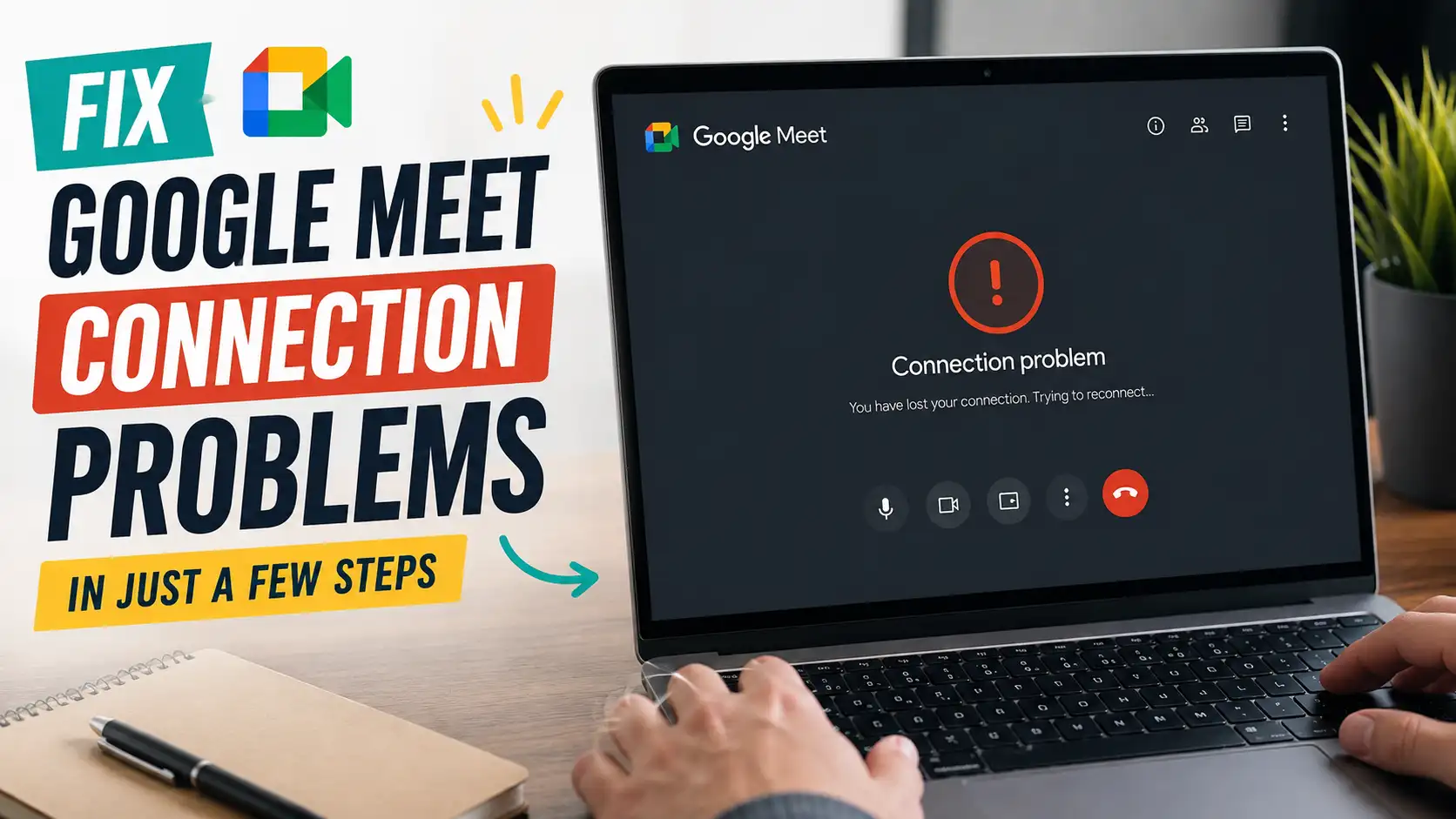
Google Meet has become a practical part of everyday communication. People use it for office meetings, online classes, job interviews, client discussions, presentations, group projects, and quick conversations with friends or family. Most of the time, joining a meeting is simple. You open the invitation, check your microphone and camera, and you’re ready to go. When everything works properly, you barely think about the technology behind the call. But when Google Meet suddenly refuses to connect, freezes your video, delays your audio, or repeatedly disconnects you, a meeting that should take only a few minutes can quickly become a frustrating experience.
The frustrating part is that Google Meet connection problems don’t always have an obvious cause. You might have a fast internet connection and still experience choppy video, robotic audio, or repeated connection warnings. Your Wi-Fi may work perfectly when you’re browsing websites or watching videos, yet Google Meet keeps telling you that your connection is unstable. In other cases, the internet isn’t responsible at all. An outdated browser, corrupted cache, VPN, browser extension, incorrect permission, overloaded computer, or another application using your camera or microphone can create problems that look like network issues.
Fortunately, fixing Google Meet doesn’t usually require advanced networking knowledge. You don’t need to immediately reinstall your browser, reset your entire network, or change complicated system settings. Most problems can be narrowed down by checking the simplest possibilities first and then moving toward more specific solutions. Restarting your browser, checking your internet connection, closing unnecessary applications, disabling a VPN temporarily, or verifying camera and microphone permissions can sometimes solve the problem within minutes. The key is to troubleshoot one thing at a time so you can identify what is actually causing the issue.
This guide covers practical ways to fix Google Meet connection problems on computers and mobile devices. You’ll learn how to check whether your internet connection is stable, deal with browser and software problems, clear unnecessary browser data, troubleshoot VPNs and extensions, check camera and microphone permissions, reduce video quality, and identify problems with your device or network. Whether Google Meet keeps disconnecting, your video freezes during important conversations, your audio becomes delayed, or you can’t join a meeting at all, these steps can help you get the service working properly again.
Why Google Meet Connection Problems Happen
Google Meet depends on several different components working together at the same time. Your device needs a stable internet connection, your browser or app needs to communicate properly with Google’s servers, and your computer or phone needs enough processing resources to handle real-time audio and video. At the same time, Google Meet needs permission to access your camera and microphone. If one of these components develops a problem, the entire meeting experience can suffer.
The symptoms can also be misleading. A frozen video might make you think your internet is slow when the actual problem is high CPU usage or an overloaded browser. A microphone that suddenly stops working might seem like a connection failure when the browser has simply lost permission to access it. Understanding the common causes makes troubleshooting much easier because you can focus on the right part of your setup instead of randomly changing settings.
Weak or Unstable Internet Connection
An unstable internet connection is one of the most common causes of Google Meet problems. Unlike normal web browsing, a video meeting requires a continuous exchange of data. Your device receives video and audio from other participants while simultaneously sending your own camera and microphone data. Even a brief interruption can cause noticeable problems, including frozen video, delayed voices, robotic audio, blurry images, or sudden disconnections.
Browser Problems and Outdated Software
Your browser is an important part of Google Meet when you’re using a computer. Meet relies on modern browser technologies to process video, audio, screen sharing, and other real-time features. An outdated browser can create compatibility problems, while corrupted cached files or problematic extensions can interfere with how Meet operates. If Meet suddenly starts behaving differently after a browser update, a long browsing session, or the installation of a new extension, the browser deserves attention.
Microphone, Camera, and Device Conflicts
Not every Google Meet problem is actually related to your internet connection. Your browser may not have permission to access your microphone or camera, another application may already be using your webcam, or Google Meet may have selected the wrong audio input. Your device’s performance can also matter. Running many browser tabs, games, video-editing applications, or other demanding programs can consume CPU and memory resources, potentially causing stuttering or frozen video during a meeting.
Check Your Internet Connection First
Before changing browser settings or digging into advanced troubleshooting, check your internet connection. This is one of the quickest ways to determine whether Google Meet is actually causing the problem. Open a few different websites and see whether they load normally. If pages are taking unusually long to open, videos are buffering, or your connection keeps dropping, the problem may be affecting your entire network rather than Google Meet specifically.
Keep in mind that ordinary web browsing doesn’t always reveal connection instability. A webpage can wait for missing information and eventually finish loading, while a live video meeting needs information to arrive continuously. That’s why Google Meet can struggle even when other websites appear perfectly normal. Look for signs such as delayed audio, frozen participant videos, frequent quality changes, or messages indicating that your connection is unstable.
Run a Quick Speed Test
Run an internet speed test to get a basic idea of your connection’s performance. Don’t focus exclusively on the download-speed number. Upload speed is also important because your microphone and camera need to send data to Google Meet, while latency and connection stability can have a major effect on a real-time conversation.
Try running the test more than once if your connection seems inconsistent. A result that looks excellent one minute and dramatically worse a few minutes later could indicate network congestion or instability. If your speed remains stable but Google Meet still has problems, continue troubleshooting your browser, device, or Meet settings instead of immediately assuming that you need a faster internet package.
What Internet Speed Does Google Meet Need?
The bandwidth Google Meet needs can vary depending on factors such as video quality, the number of participants, and whether you’re sending or receiving high-quality video. A normal meeting doesn’t necessarily require an extremely fast connection, but the available bandwidth needs to remain reasonably stable throughout the call.
If your connection is struggling, reducing video quality can help. Turning off your camera can reduce the amount of data your device needs to upload, while lowering video quality can reduce the overall network demand. In many situations, reducing the workload is more effective than simply chasing a higher speed-test result.
Restart Your Router or Modem
If your internet connection appears unstable, restart your router or modem. Networking equipment can occasionally develop temporary problems, especially when it has been running continuously for a long time. A restart can refresh the connection between your equipment and your internet provider and clear temporary network issues that may be affecting Google Meet.
Turn off the router or modem, wait around 30 seconds, and then turn it back on. Give the device a few minutes to reconnect fully before testing Google Meet again. If the meeting becomes stable after the restart, the problem may have been temporary rather than something requiring complicated configuration changes.
Restart Google Meet and Your Browser
A simple browser restart can solve more Google Meet problems than you might expect. Browsers can remain open for hours or even days, accumulating tabs, background processes, cached resources, and other temporary data. Eventually, one of those processes can behave incorrectly and interfere with a web application such as Google Meet.
Completely close the browser rather than simply closing the Google Meet tab. Wait a few seconds, reopen the browser, and join the meeting again. If the issue continues, restart the entire computer. A system restart clears temporary processes and can also refresh network services, memory usage, and hardware connections that may have become stuck.
Close Unnecessary Browser Tabs
Having many browser tabs open can consume a surprising amount of memory and processing power. Some websites also continue running scripts or background tasks even when you’re not actively looking at them. Streaming services, online editors, social media sites, and web applications can be particularly demanding during a video meeting.
Close tabs that you don’t need before joining Google Meet. This gives your browser more resources to handle video and audio processing and can make a noticeable difference on computers with limited RAM or older processors. If Meet becomes smoother after closing several demanding tabs, your device was likely under unnecessary workload.
Update Your Browser
An outdated browser can cause compatibility problems with modern web applications. Google Meet relies on browser features that can change and improve over time, so using an old browser version may prevent certain features from working correctly or introduce unexpected connection behavior.
Check your browser’s settings or About section for available updates and install them if necessary. Once the update is complete, restart the browser before testing Google Meet again. Keeping the browser updated also helps ensure that you receive important security and performance improvements alongside compatibility fixes.
Clear Browser Cache and Cookies
Your browser stores temporary files, cookies, and other website data to help pages load faster and remember certain settings. Normally, this data is useful and works quietly in the background. However, cached files can sometimes become outdated or corrupted, especially after a website or browser receives major updates. When that happens, Google Meet may behave strangely even though your internet connection is working properly.
If Meet keeps freezing, fails to load correctly, or repeatedly asks you to reconnect, clearing cached browser data can be worth trying. You don’t necessarily need to erase all of your browsing information immediately. Start by clearing cached files and then test Google Meet again. If the problem remains, you can consider clearing relevant cookies as well, although this may sign you out of some Google services and other websites.
Why Cached Data Can Cause Connection Issues
Think of cached data as a collection of shortcuts your browser keeps so it doesn’t have to download the same information repeatedly. The problem occurs when those shortcuts point to older versions of files or settings. Google Meet may then attempt to use information that no longer matches the current version of the service.
Clearing the cache forces your browser to retrieve fresh files the next time you open Google Meet. This can resolve strange loading behavior, missing interface elements, or problems that started after an update. If Meet works normally after clearing the cache, there’s a good chance outdated browser data was contributing to the problem.
Disable VPNs and Network-Heavy Extensions
VPNs and browser extensions can occasionally interfere with Google Meet. A VPN changes the route your internet traffic takes, which can add another connection point between your device and Google’s servers. If the selected VPN server is far away, overloaded, or experiencing network congestion, the extra routing can increase latency and make a video meeting less stable.
Browser extensions can create problems for a different reason. Some extensions inspect web traffic, block scripts, modify page content, or consume additional system resources. Most extensions work without causing trouble, but a particular extension can sometimes interfere with a complex web application such as Google Meet. Temporarily disabling these tools can help determine whether they’re responsible.
Temporarily Turn Off Your VPN
If you’re using a VPN, disconnect it temporarily and then join Google Meet again. If the meeting immediately becomes more stable, the VPN may be affecting the connection. You don’t necessarily have to stop using the VPN permanently. Try connecting through a different server, preferably one that is geographically closer to you, and compare the results.
This is a useful troubleshooting test because it can quickly separate a general internet problem from a routing problem caused by the VPN. If Google Meet works normally without the VPN but becomes unstable whenever it is enabled, you’ve narrowed down the likely cause considerably.
Check Browser Extensions
Try disabling your browser extensions temporarily and then reload Google Meet. If you have many extensions installed, you don’t necessarily need to remove them all. Disable them first and test the meeting. If the problem disappears, enable the extensions individually until you find the one causing the conflict.
Incognito mode can also provide a quick comparison because extensions are generally restricted there depending on your browser settings. If Google Meet works properly in an Incognito window but not in your normal browser session, that points toward an extension, cached data, cookies, or another browser-specific setting.
If you want to find out what information about you appears online and what you should pay attention to, check out Google Your Name! Here’s What You Should Look For.
Check Google Meet Camera and Microphone Permissions
If you can successfully enter a Google Meet session but other participants can’t see or hear you, don’t immediately blame your internet connection. Google Meet needs permission to access your camera and microphone, and those permissions can be blocked by either your browser or operating system. This can happen after installing a new browser, changing privacy settings, connecting new hardware, or updating your operating system.
It’s also possible for Meet to select the wrong device when you have several cameras or microphones connected. A laptop might have its built-in microphone, a USB headset, a webcam microphone, and a Bluetooth headset available simultaneously. Checking the selected devices inside Meet can therefore be just as important as checking the permissions themselves.
Allow Camera Access
Check your browser’s permissions for Google Meet and make sure camera access is allowed. Then open the audio and video settings inside Meet and confirm that the correct camera is selected. If you have both a built-in webcam and an external USB camera, make sure Meet is using the device you actually want.
You should also close other applications that may be using the camera. Video-conferencing software, streaming applications, camera utilities, and recording programs can sometimes occupy the webcam and prevent Google Meet from accessing it correctly. After closing those applications, reload the meeting and test the camera again.
Allow Microphone Access
Check the microphone permissions in both your browser and operating system. Google Meet needs permission at both levels, so allowing access in one place may not be enough if the operating system is blocking it somewhere else. Once access is enabled, return to Meet and make sure the correct microphone is selected.
If you’re using a headset or Bluetooth audio device, check that it is connected properly before joining the meeting. Your computer may automatically switch between available audio devices, causing Meet to listen to a microphone you aren’t actually using. Selecting the correct input device can immediately restore your audio without requiring any network changes.
Reduce Google Meet Video Quality
If your Google Meet connection is unstable, reducing the amount of video data being processed can make a noticeable difference. High-quality video requires more bandwidth and can also place additional demands on your computer’s processor. When your internet connection or device is already struggling, lowering the video quality gives both the network and hardware a little more breathing room.
You don’t necessarily need high-definition video for every meeting. If the goal is simply to communicate clearly, a slightly lower video resolution is often a reasonable trade-off for a smoother conversation. A stable image with clear audio is much more useful than a sharp video that freezes every few seconds.
Turn Off HD Video
If your connection is struggling, switch away from high-definition video when possible. Lower video quality reduces the amount of data that needs to be transmitted and processed during the meeting. This can be particularly helpful when several people are using the same internet connection or when you’re relying on a weaker Wi-Fi signal.
You can also reduce incoming video if the meeting environment allows it. When your network is under heavy load, every bit of bandwidth matters. Reducing unnecessary video traffic can help keep the essential parts of the meeting, especially audio, more stable.
Use Audio-Only When Necessary
Turning off your camera is one of the quickest ways to reduce the amount of data being uploaded from your device. If your connection is struggling badly, keeping your camera off can give Google Meet more room to maintain a stable audio connection.
This is especially useful during important meetings where hearing the conversation matters more than seeing everyone’s video. You can always turn the camera back on once the connection improves. In a poor network environment, clear audio is far more useful than a constantly frozen video feed.
Try Google Meet in Incognito Mode
Opening Google Meet in Incognito or private browsing mode is a useful way to determine whether your normal browser environment is causing the problem. Incognito sessions generally start with a cleaner environment, with existing browsing data and many extensions not affecting the session in the same way. This makes it a convenient diagnostic test rather than just another way to access Meet.
Open an Incognito window, sign in if required, and join the same meeting. If Google Meet suddenly works normally, the problem may be related to your regular browser session. Cached data, cookies, extensions, or another browser-specific configuration could be interfering. You can then focus your troubleshooting on those areas instead of changing your internet connection unnecessarily.
Restart Your Computer or Phone
Restarting your device remains one of the simplest troubleshooting steps, but it’s surprisingly effective. Computers and phones can accumulate temporary processes, memory usage, background tasks, and network states that don’t always behave perfectly. A restart clears many of those temporary conditions and gives Google Meet a clean environment to operate in.
Before restarting, save any important work and close applications normally. After the device starts again, reconnect to your network and open Google Meet before launching other demanding applications. If the connection suddenly becomes stable after the restart, a temporary software or resource issue may have been responsible.
Check Google Meet Server Status
Sometimes Google Meet isn’t the thing that needs fixing. Google’s services can occasionally experience outages, regional disruptions, or temporary performance problems. When this happens, changing your browser settings or restarting your router won’t necessarily solve anything because the issue is happening outside your device.
Check Google’s official service-status information if your connection appears normal but Meet continues to fail. It’s particularly important to check when multiple participants experience the same problem at approximately the same time. If everyone suddenly gets disconnected or cannot join, the problem may be affecting the service itself rather than your individual setup.
What to Do If Google Meet Keeps Disconnecting
Repeated disconnections usually indicate that something is interrupting the connection rather than simply making it slow. Your Wi-Fi signal might briefly disappear, your router could be struggling with network traffic, or your device might switch between available networks. A VPN can also reconnect in the background and interrupt an ongoing meeting.
Pay attention to when the disconnection happens. If Meet disconnects whenever you move around the house, your Wi-Fi signal may be the issue. If it happens whenever another person starts downloading a large file, network congestion could be responsible. If it only happens while your VPN is enabled, the VPN route deserves attention. Identifying a pattern can save you from trying unrelated fixes.
Switch to Another Network
Switching to another network is one of the most useful troubleshooting tests. If you’re using Wi-Fi, try another Wi-Fi network or, when practical, use mobile data. If Google Meet suddenly becomes stable, you’ve learned that the original network is probably responsible for the problem.
That doesn’t necessarily mean your internet provider is at fault. The issue could come from your router, Wi-Fi interference, network congestion, or a configuration problem. Still, testing another network gives you a clear comparison and helps determine whether you should focus on Google Meet or your original connection.
Move Closer to Your Wi-Fi Router
Distance can have a significant effect on Wi-Fi performance. Walls, floors, furniture, appliances, and nearby wireless networks can weaken the signal between your device and router. You may not notice the problem during light web browsing, but a real-time video meeting can expose even small weaknesses in the connection.
Move closer to the router and test Google Meet again. If the meeting becomes noticeably more stable, your Wi-Fi signal may be the main problem. For particularly important meetings, using an Ethernet connection can be even more reliable because it removes many of the variables associated with wireless connectivity.
Google Meet Connection Problems on Mobile Devices
Google Meet can experience connection problems on smartphones and tablets for reasons that are slightly different from those on computers. Mobile devices constantly manage Wi-Fi, cellular data, battery usage, background applications, and network switching. If your phone moves between a weak Wi-Fi signal and mobile data, for example, the connection can briefly change while you’re in the middle of a meeting, causing frozen video or an unexpected disconnection.
Start by making sure the Google Meet app is updated to the latest available version. Then check whether the app has permission to use your microphone and camera. If you’re connected to Wi-Fi, try moving closer to the router or temporarily switching to mobile data. If Meet works normally on mobile data but struggles on Wi-Fi, the problem is more likely related to the wireless network than the phone itself. You should also close unnecessary applications and temporarily disable aggressive battery-saving features if they appear to interfere with the meeting.
Reset Network Settings
If your phone continues experiencing connection problems across several applications, resetting its network settings can sometimes resolve persistent configuration issues. This can refresh saved network information and remove settings that may have become corrupted or incorrectly configured over time.
Keep in mind that a network reset usually removes saved Wi-Fi networks, Bluetooth pairings, and other network-related configurations. You’ll need to reconnect to your Wi-Fi and pair your Bluetooth devices again afterward. Because of this, treat a network reset as a later troubleshooting step rather than something you should immediately try for a single Google Meet problem.
Google Meet Connection Problems on Windows PCs
Windows PCs can experience Google Meet problems because of network adapters, drivers, firewall settings, browser configuration, background applications, or system-level network issues. If Google Meet is the only application having trouble, focus first on the browser and Meet itself. However, if websites, online games, downloads, and other internet-dependent applications are also experiencing interruptions, Windows networking may deserve closer attention.
Open Windows network settings and confirm that your computer is connected to the correct Wi-Fi or Ethernet network. If the connection repeatedly drops, try disconnecting and reconnecting to the network. You can also forget the Wi-Fi network and connect again using the password. These simple steps can refresh the connection without requiring more advanced changes to Windows.
Update Your Network Adapter Driver
Your computer’s Wi-Fi or Ethernet adapter relies on a driver to communicate with Windows. If the driver is outdated, corrupted, or incompatible with the current system configuration, you may experience connection instability that affects Google Meet and other online services.
Check Device Manager and locate your network adapter under Network adapters. If an update is available, use Windows Update or obtain the appropriate driver from your computer or network-adapter manufacturer’s official support page. Avoid downloading drivers from unfamiliar websites simply because they claim to offer newer versions. A connection problem is frustrating, but installing an unreliable driver can create an even bigger problem.
When Nothing Else Works
If you’ve already checked your internet connection, restarted your router and browser, updated your software, disabled your VPN, tested browser extensions, checked camera and microphone permissions, and restarted your device, it’s time to isolate the problem. Try joining Google Meet from a different browser or another device. This can quickly reveal whether the problem is tied to one particular computer, browser installation, or network.
For example, if Google Meet works perfectly on your phone but continues disconnecting on your laptop, your internet connection may not be the main problem. You can then focus on the laptop’s browser, network adapter, drivers, or system configuration. On the other hand, if Meet fails on several devices connected to the same Wi-Fi network, the network itself becomes a much stronger suspect. Changing one variable at a time makes this process much easier because you can see exactly which change affects the result.
Conclusion
Google Meet connection problems can turn an otherwise simple online meeting into a frustrating experience, but the solution is often much easier than it first appears. Most problems can be traced to a handful of common causes, including unstable internet, browser issues, VPNs, extensions, device performance, incorrect permissions, or problems with the local network. Starting with the basics gives you a much better chance of fixing the problem quickly without making unnecessary changes to your system.
The best approach is to troubleshoot systematically. Check your connection first, restart your router and browser, close unnecessary applications, update your software, and verify that Google Meet can access your microphone and camera. If the problem continues, test without a VPN, try Incognito mode, reduce video quality, switch networks, or test another device. These steps don’t just give you possible fixes; they also help you identify where the problem is coming from.
Remember that a fast internet connection isn’t always a stable one, and a connection problem isn’t always caused by the internet. Sometimes the culprit is sitting quietly inside your browser, device settings, or network configuration. By testing each possibility instead of changing everything at once, you can usually narrow down the cause and get Google Meet running smoothly again.
FAQs About Google Meet Connection Problems
1. Why does Google Meet keep disconnecting?
Google Meet can keep disconnecting when your internet connection is unstable, your Wi-Fi signal is weak, or your network is experiencing congestion or packet loss. A VPN can also contribute to the problem if it routes your connection through a distant or overloaded server. Browser issues, outdated software, and temporary Google service problems are other possible causes.
Start by checking whether other devices on the same network are experiencing connection problems. Then try switching to another network or temporarily disabling your VPN. If Google Meet becomes stable after one of those changes, you’ve likely identified the area that needs further troubleshooting.
2. How fast should my internet be for Google Meet?
Google Meet doesn’t necessarily require an extremely fast internet connection for a normal meeting. What matters is having enough consistent bandwidth for the audio and video quality you’re using. Upload bandwidth is important because your microphone and camera send information to the meeting, while download bandwidth handles the video and audio coming from other participants.
A connection can also perform poorly despite having high advertised speeds if it suffers from latency, packet loss, or wireless interference. If Meet is struggling, try reducing video quality or turning off your camera. These changes can reduce network demand and may provide a smoother experience.
3. Why is Google Meet lagging when my internet is fast?
A high download speed doesn’t guarantee low latency or a stable connection. Google Meet can lag because of packet loss, Wi-Fi interference, network congestion, VPN routing, browser extensions, or heavy CPU and memory usage on your computer.
Close unnecessary applications and browser tabs, then test Google Meet again. You can also temporarily disable your VPN and move closer to your Wi-Fi router. If the problem disappears after one of these changes, the cause is likely related to your local network or device rather than raw internet speed.
4. Does a VPN affect Google Meet?
A VPN can affect Google Meet because it changes the route used by your internet traffic. Instead of connecting through your normal network path, your data travels through a VPN server first. If that server is far away, congested, or experiencing performance issues, the additional routing can increase latency or reduce connection stability.
The easiest way to determine whether the VPN is responsible is to disconnect it temporarily and test Google Meet. If the meeting immediately becomes smoother, try another VPN server closer to your location. This may allow you to continue using the VPN without experiencing the same connection problems.
5. How can I fix Google Meet connection problems quickly?
Start with the simplest solutions. Check your internet connection, restart your router if necessary, completely close and reopen your browser, and close unnecessary applications. If you’re using a VPN, disconnect it temporarily and test the meeting again. You should also verify that Google Meet has access to your camera and microphone.
If those steps don’t work, try Incognito mode, clear your browser cache, lower video quality, switch to another network, or test Google Meet on another device. These tests can help determine whether the issue comes from your internet connection, browser, device, or Google Meet itself.