

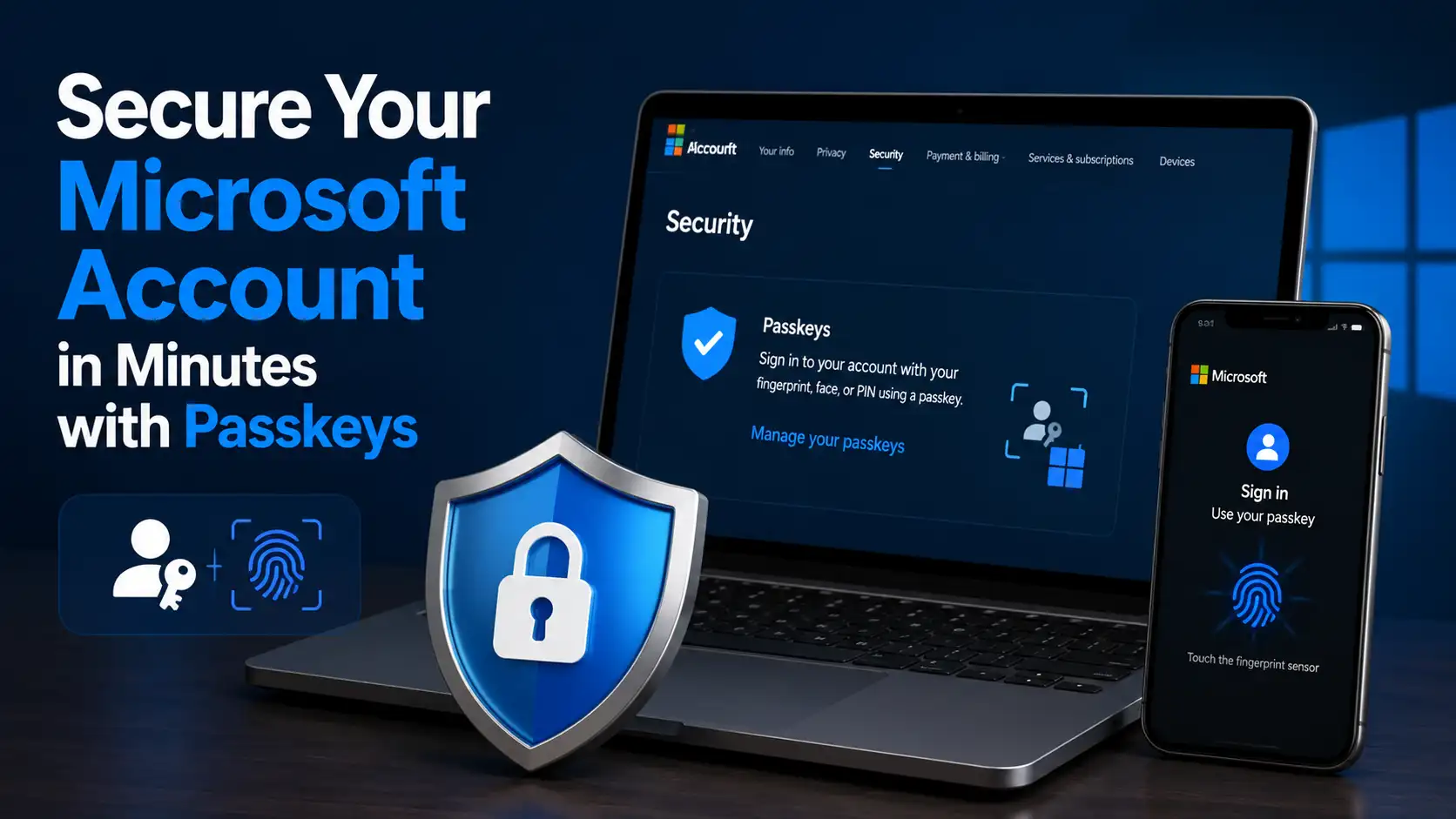
Passwords have protected online accounts for decades, and for a long time they were considered the best way to keep personal information safe. Whether you wanted to access your email, online banking, cloud storage, or gaming account, everything relied on creating a password that only you were supposed to know. Unfortunately, the internet has changed dramatically over the years. Cybercriminals have developed increasingly sophisticated ways to steal passwords through phishing websites, malware, keyloggers, data breaches, and social engineering attacks. As a result, even users who carefully create strong passwords can still become victims of account theft. In today’s digital world, simply relying on a password is no longer enough to guarantee that your Microsoft account remains secure.
Microsoft understands these challenges and has been working toward a future where passwords become optional—or even disappear entirely. Instead of asking users to memorize complicated combinations of uppercase letters, lowercase letters, numbers, and special characters, Microsoft now supports passkeys, a modern authentication technology designed to make logging in both easier and significantly more secure. Passkeys take advantage of cryptographic security and the trusted hardware already built into modern devices, allowing users to verify their identity using facial recognition, fingerprint scanning, or a device PIN without exposing sensitive credentials over the internet. This represents one of the biggest improvements in account security since two-factor authentication became widely available.
The best part is that switching to passkeys doesn’t require advanced technical knowledge or expensive security equipment. If you already use Windows Hello, a smartphone with biometric authentication, or a compatible security key, you’re much closer to passwordless security than you might think. Setting up a passkey for your Microsoft account usually takes only a few minutes, yet it can dramatically reduce the risk of phishing attacks, credential theft, and unauthorized account access. In this guide, you’ll discover exactly what Microsoft passkeys are, how they work behind the scenes, why security experts recommend using them, and how you can strengthen your Microsoft account with one of the safest authentication methods available today.
What Is a Microsoft Passkey?
A Microsoft passkey is a passwordless sign-in credential that replaces your traditional password with a secure cryptographic authentication method. Rather than typing a password every time you access your Microsoft account, your trusted device confirms your identity using technologies such as Windows Hello Face, fingerprint recognition, a device PIN, or an external FIDO2 security key. Once your identity has been verified locally on your device, the authentication process is completed securely without transmitting your private authentication credential across the internet. This creates a login experience that is not only faster but also significantly more resistant to many of the attacks that commonly target password-based accounts.
Although the concept may sound highly technical at first, using a passkey is actually much simpler than managing traditional passwords. After creating a passkey, most future sign-ins only require you to unlock your device the same way you normally do every day. There’s no need to remember long passwords, write them down, or depend on frequent password resets. Because the authentication relies on cryptographic technology rather than shared secrets, attackers cannot simply steal your login credentials through fake websites or intercepted network traffic. This combination of convenience and advanced security is one of the main reasons Microsoft, along with many other major technology companies, is encouraging users to transition toward passwordless authentication.
How Do Passkeys Work?
While the user experience feels incredibly simple, the technology behind passkeys is based on advanced public-key cryptography that has been refined and trusted by the cybersecurity industry for many years. Instead of creating a password that both you and Microsoft know, your device automatically generates two mathematically related cryptographic keys during the passkey creation process. One key remains private and securely stored on your device, while the other becomes a public key that Microsoft can safely store on its authentication servers. Because these keys perform completely different roles, the public key alone cannot be used to gain access to your account.
Whenever you attempt to sign in, Microsoft’s authentication system sends a unique cryptographic challenge to your trusted device. Your device then verifies that you are physically present by asking for biometric authentication or your device PIN. After your identity is confirmed, the private key securely signs the challenge and returns the response to Microsoft. Since the private key never leaves your device—not even during authentication—it cannot be intercepted by hackers, copied by malicious software, or stolen from Microsoft’s servers. This process happens within seconds, giving users a seamless login experience while providing an extremely high level of protection against credential theft.
The Two Cryptographic Keys
Every passkey relies on two separate cryptographic keys that work together to verify your identity securely. Although they are generated as a matching pair, each key has a completely different purpose, which is one of the biggest reasons passkeys are considered far more secure than traditional passwords.
- Private Key – This key is stored securely on your trusted device and never leaves it. It is protected by your device’s hardware security features and can only be used after you verify your identity using Windows Hello, a fingerprint, facial recognition, or your device PIN.
- Public Key – This key is stored by Microsoft and is safe to share because it cannot be used to recreate the private key. Its only purpose is to verify that authentication requests coming from your device are genuine.
Because these two keys work together mathematically instead of relying on a shared password, attackers cannot steal a reusable credential during the login process. Even if someone somehow obtained the public key stored on Microsoft’s servers, it would be completely useless without access to the matching private key that remains securely protected on your personal device.
Authentication Happens Without Sharing Secrets
One of the biggest differences between passwords and passkeys is that passwords must be transmitted and verified, while passkeys prove your identity without revealing your private authentication credential. This seemingly small difference has enormous security benefits because it removes one of the most common opportunities for cybercriminals to intercept login information.
Instead of asking, “Is this the correct password?”, Microsoft’s servers ask your device to prove that it possesses the correct private key. Your device performs the verification internally and returns only the cryptographic proof—not the private key itself. As a result, there’s no reusable secret traveling across the internet for attackers to capture, making phishing, credential interception, and many other traditional password attacks dramatically less effective.
Why Microsoft Is Moving Beyond Passwords
For decades, passwords have served as the primary defense protecting online accounts. However, as cyber threats have become increasingly sophisticated, the limitations of passwords have become impossible to ignore. Every year, billions of stolen credentials appear on underground marketplaces after major data breaches, giving cybercriminals countless opportunities to attempt credential stuffing attacks against popular online services. Even users who create strong passwords often unknowingly reuse them across multiple accounts, meaning a single compromised website can potentially expose access to email accounts, cloud storage, online shopping platforms, and other important services. This growing problem has convinced many cybersecurity experts that passwords alone are no longer sufficient for protecting modern digital identities.
Microsoft has publicly embraced a passwordless future because eliminating passwords removes one of the largest attack surfaces available to cybercriminals. Instead of depending on users to create and manage increasingly complex passwords, Microsoft focuses on authentication methods that are tied directly to trusted hardware and cryptographic verification. This approach significantly reduces the effectiveness of phishing campaigns, password guessing attacks, credential theft, and database leaks. By encouraging users to adopt passkeys, Microsoft isn’t simply introducing another login option—it’s fundamentally changing how identity verification works, making online authentication both safer and far more convenient for millions of users worldwide.
Benefits of Using Passkeys for Your Microsoft Account
Switching your Microsoft account from passwords to passkeys offers far more than a simple convenience upgrade. While faster sign-ins are certainly appealing, the real advantage lies in the combination of stronger security and a smoother everyday user experience. Instead of constantly worrying about creating complex passwords or remembering dozens of different login credentials, you can rely on your trusted device to handle authentication securely in the background. This reduces frustration while simultaneously improving protection against some of today’s most common cyber threats.
Another important benefit is that passkeys encourage better security habits without requiring additional effort from the user. Traditional cybersecurity advice often involves creating unique passwords, enabling two-factor authentication, changing passwords after breaches, and avoiding password reuse. Although these practices remain valuable, many people struggle to follow them consistently because they’re inconvenient. Passkeys simplify the entire process by replacing passwords altogether, allowing users to enjoy stronger protection without adding extra complexity to their daily routine.
Better Protection Against Phishing
Phishing remains one of the most successful techniques used by cybercriminals because it targets human behavior rather than software vulnerabilities. Attackers frequently create fake Microsoft login pages that look nearly identical to the official website, hoping users will unknowingly type their usernames and passwords. Once those credentials are entered, attackers can immediately attempt to access the victim’s account from anywhere in the world.
Passkeys dramatically reduce this risk because they cannot be tricked into authenticating with fraudulent websites. Your device only responds to authentication requests from the legitimate Microsoft domain associated with your passkey. Even if a phishing website perfectly copies Microsoft’s design, the cryptographic verification simply won’t complete because the fake website cannot satisfy the security requirements built into the authentication process. This makes passkeys one of the most effective defenses currently available against phishing attacks.
No More Forgotten Passwords
Almost everyone has experienced the frustration of forgetting a password at some point. Maybe you created a long and complex password months ago, only to realize later that you couldn’t remember whether the third character was a capital letter, a number, or a special symbol. The result is usually the same: clicking the “Forgot Password” button, waiting for a verification email or SMS code, creating a new password, and then trying to remember that one instead. While this process is designed to protect your account, it can quickly become inconvenient, especially if you manage multiple Microsoft services such as Outlook, OneDrive, Microsoft 365, Xbox, and Teams.
Passkeys eliminate this entire cycle because there is no password to memorize in the first place. Once a passkey has been created on your trusted device, signing in simply involves verifying your identity using a method you’re already familiar with, such as Windows Hello Face, a fingerprint scanner, or your device PIN. Since authentication depends on your device rather than a memorized password, you can spend less time recovering forgotten credentials and more time actually using your Microsoft account. This convenience is one of the biggest reasons many users quickly prefer passkeys after trying them for the first time.
Improved Security Against Data Breaches
Data breaches have unfortunately become a regular occurrence in today’s digital landscape. Every year, countless websites suffer security incidents that expose millions—or even billions—of usernames and passwords. Once these credentials become available online, attackers frequently use automated tools to test the same username and password combination across other popular services, hoping that users have reused the same login information elsewhere. This technique, known as credential stuffing, has successfully compromised countless online accounts over the years.
Passkeys greatly reduce this risk because there is no reusable password stored on Microsoft’s servers. Instead, Microsoft stores only the public key associated with your account, while the private key remains securely protected on your trusted device. Even if attackers somehow gained access to Microsoft’s authentication database, the public key alone would provide no practical way to log in to your account. Without the corresponding private key stored securely on your device, the stolen information would be effectively useless. This architecture provides a level of protection that traditional password databases simply cannot match.
A Faster Sign-In Experience
Security often receives most of the attention when discussing passkeys, but convenience is just as important. If a security feature is overly complicated or slows people down, many users eventually look for shortcuts that unintentionally weaken their overall protection. That’s one reason why password reuse became so common in the first place—it was simply easier than remembering dozens of unique passwords.
Passkeys remove much of that friction. Instead of typing your email address, entering a password, completing a CAPTCHA, and then approving a two-factor authentication request, you often only need to confirm your identity using your fingerprint, facial recognition, or Windows Hello PIN. In many cases, the entire login process takes only a few seconds. This smoother experience makes secure authentication feel almost effortless, encouraging users to adopt stronger security practices without disrupting their daily workflow.
Reduced Dependence on Password Managers
Password managers remain an excellent tool for storing strong and unique passwords, and they continue to play an important role in online security. However, many users still find them intimidating or inconvenient to set up. Others forget their password manager’s master password, creating yet another credential that must be remembered and protected.
Passkeys reduce the need to rely on password managers for supported accounts because there is no password to store. Your authentication credentials remain securely tied to your trusted device, simplifying account management while maintaining a high level of security. Although password managers are still useful for websites that haven’t adopted passkeys yet, the overall number of passwords you need to manage gradually decreases as more online services embrace passwordless authentication.
You may also want to read Your Windows 11 PC Restarting by Itself? Here’s the Real Fix to troubleshoot unexpected restarts and improve your PC’s stability.
Devices That Support Microsoft Passkeys
One of the biggest misconceptions about passkeys is that they require special hardware or expensive equipment. In reality, many people already own compatible devices capable of creating and using passkeys. Microsoft has worked closely with industry partners to ensure that passkeys function across a wide variety of modern operating systems, smartphones, tablets, laptops, and security keys.
As long as your device supports modern authentication standards such as Windows Hello, Touch ID, Face ID, Android biometric authentication, or FIDO2 security keys, there’s a good chance you can begin using passkeys without purchasing anything new. Compatibility continues to improve as software updates expand support across different platforms and browsers, making passwordless authentication increasingly accessible to everyday users.
Windows PCs
Windows 10 and Windows 11 devices equipped with Windows Hello provide one of the best experiences for Microsoft passkeys. If your computer already supports facial recognition, fingerprint authentication, or Windows Hello PIN, you’re well positioned to adopt passwordless authentication. During sign-in, Windows securely verifies your identity locally before completing authentication with your Microsoft account.
Another advantage of Windows Hello is that it integrates naturally into Microsoft’s ecosystem. Whether you’re signing in to Outlook, OneDrive, Microsoft 365, or other Microsoft services, authentication feels fast and consistent. Users who already unlock their computers with Windows Hello will notice that using passkeys requires very little adjustment to their existing workflow.
Android Smartphones
Modern Android smartphones also support passkeys through built-in biometric authentication. Depending on your device, you can verify your identity using a fingerprint scanner, facial recognition, or your device’s secure screen lock. Once configured, your phone can securely store your passkeys and use them whenever you sign in to supported Microsoft services.
Android’s support for passkeys also makes cross-device authentication remarkably convenient. For example, if you’re signing in on another computer, your Android phone may allow you to approve the login securely without typing a password. This creates a seamless experience while maintaining strong cryptographic protection.
Apple Devices
Apple users can also take advantage of Microsoft passkeys using compatible iPhones, iPads, and Mac computers. Devices that support Face ID, Touch ID, or secure device authentication can create and manage passkeys while keeping private keys protected within Apple’s secure hardware environment.
Because passkeys synchronize across Apple’s ecosystem for supported accounts, users who frequently switch between their iPhone, iPad, and Mac can enjoy a consistent passwordless login experience. Combined with Apple’s emphasis on privacy and secure hardware, passkeys provide a convenient and highly secure authentication solution for Microsoft accounts.
FIDO2 Security Keys
For users who prefer dedicated hardware authentication, FIDO2 security keys remain an excellent option. These compact devices connect through USB, NFC, or Bluetooth and perform cryptographic authentication independently of your computer or smartphone. Since the authentication process occurs within the security key itself, private credentials remain highly protected.
Hardware security keys are especially popular among business professionals, IT administrators, journalists, and anyone responsible for protecting sensitive information. They also provide an excellent backup authentication method in situations where biometric authentication may not be available. While not every Microsoft user needs a dedicated security key, it remains one of the strongest authentication options available today.
How to Set Up a Passkey for Your Microsoft Account
One of the biggest advantages of Microsoft’s passwordless approach is how straightforward the setup process has become. Years ago, improving account security often meant navigating multiple security menus, installing additional software, or purchasing specialized hardware. Today, Microsoft has simplified the experience so that most users can create a passkey in just a few minutes using a compatible computer, smartphone, or tablet. If your device already supports Windows Hello, Face ID, Touch ID, Android biometrics, or a FIDO2 security key, you already have most of what you need.
Before you begin, make sure your Microsoft account has access to the latest security features and that you’re using an up-to-date browser or operating system. While older devices may still rely primarily on passwords, newer versions of Windows, Android, iOS, macOS, and major web browsers offer much better support for passkeys. Keeping your device updated not only improves compatibility but also ensures you benefit from the latest security improvements and bug fixes.
Step 1: Sign In to Your Microsoft Account
Start by visiting Microsoft’s official account management page and signing in using your existing authentication method. If you’re still using a traditional password, simply log in as you normally would. If you’ve already enabled passwordless options such as Microsoft Authenticator or Windows Hello, you may use those methods instead.
After successfully signing in, navigate to your account’s security settings. Microsoft organizes security features in a dedicated section where you can review your sign-in methods, recovery options, recent account activity, and authentication preferences. Taking a few moments to explore these settings can also help you identify older authentication methods that you may eventually want to replace with more secure alternatives.
Step 2: Open the Security Settings
Once you’re inside your Microsoft account dashboard, locate the section related to account security or advanced security options. This is where Microsoft allows you to manage sign-in methods, review devices connected to your account, configure two-step verification, and add passkeys.
Don’t be surprised if Microsoft asks you to verify your identity again before allowing changes to security settings. This extra verification step helps prevent unauthorized individuals from modifying your account security if they somehow gain temporary access to one of your devices. Although it only takes a few additional seconds, it provides an important layer of protection.
Step 3: Choose to Add a Passkey
Within the sign-in methods section, select the option to add or create a new passkey. Microsoft will then detect the authentication methods available on your current device. Depending on your hardware, you might be offered Windows Hello, fingerprint recognition, facial recognition, a compatible smartphone, or a FIDO2 security key.
If multiple authentication options are available, choose the one that best fits your daily routine. For example, desktop users often prefer Windows Hello Face because it allows nearly instant authentication, while laptop users may find fingerprint readers more convenient. Smartphone users can generally continue using the biometric authentication they’re already accustomed to, making the transition to passkeys feel seamless.
Step 4: Verify Your Identity
Before creating the passkey, your device needs to confirm that you are the legitimate owner. This verification typically happens through biometric authentication or your device PIN rather than your Microsoft password. Since this authentication occurs locally on your device, your biometric information never leaves your hardware.
This is an important distinction that many users misunderstand. Microsoft does not receive your fingerprint, facial scan, or biometric data. Instead, your device simply confirms that the correct person has unlocked it and then authorizes the creation of the cryptographic credentials required for the passkey. This privacy-focused design helps protect both your identity and your personal information.
Step 5: Finish the Setup
After your identity has been verified, your device automatically generates the cryptographic key pair required for the passkey. The private key is securely stored on your device, while the corresponding public key is registered with your Microsoft account. The entire process usually takes less than a minute, and in many cases, you’ll barely notice the technical work happening behind the scenes.
Once setup is complete, Microsoft may encourage you to test the new authentication method by signing out and logging back in. This simple test confirms that everything has been configured correctly and helps familiarize you with the new sign-in experience. Most users immediately notice how much faster and more convenient the process feels compared to entering a traditional password.
Tips for Keeping Your Passkey Secure
Although passkeys provide significantly stronger protection than traditional passwords, maintaining good security habits remains essential. Technology can reduce many risks, but no authentication method is completely immune to poor security practices. Protecting your trusted devices and staying aware of potential threats are still important parts of keeping your Microsoft account safe.
Fortunately, following a few simple recommendations can help you get the most out of passkeys while minimizing the chances of unauthorized access. These practices require very little additional effort but can make a meaningful difference in your overall account security.
Keep Your Devices Updated
Software updates often include much more than new features or visual improvements. Many updates patch newly discovered security vulnerabilities that attackers could otherwise exploit. Running outdated software may leave your device exposed to risks that have already been fixed in newer versions.
Regularly updating Windows, Android, iOS, macOS, and your web browser ensures that your device continues supporting the latest passkey standards and security enhancements. Enabling automatic updates is one of the easiest ways to stay protected without having to remember to install updates manually.
Protect Your Device with Biometrics or a Strong PIN
Since your passkey is stored securely on your trusted device, protecting that device becomes extremely important. If someone gains unrestricted physical access to an unlocked computer or smartphone, they may also gain access to the accounts associated with that device.
Whenever possible, enable biometric authentication such as fingerprint recognition or facial recognition. If biometrics aren’t available, use a strong device PIN rather than a simple four-digit code like 1234 or 0000. A secure device lock serves as the first line of defense protecting your passkeys.
Enable Recovery Options
Even though passkeys simplify authentication, unexpected situations can still occur. Your smartphone could be lost, your laptop might stop working, or your security key could become damaged. Planning ahead helps ensure that these situations don’t permanently lock you out of your Microsoft account.
Review your Microsoft account recovery methods and make sure they remain up to date. Verify your recovery email address, phone number, and any backup authentication methods that Microsoft recommends. Having reliable recovery options available provides peace of mind if your primary device ever becomes unavailable.
Remove Passkeys from Devices You No Longer Use
If you sell, recycle, donate, or give away a device that previously stored one of your Microsoft passkeys, remember to remove that authentication method from your account beforehand. While performing a factory reset is generally sufficient, reviewing your account’s list of registered devices provides an additional layer of confidence.
Periodically checking your Microsoft account’s security dashboard also allows you to identify older devices that you no longer recognize or use. Keeping only active, trusted devices associated with your account reduces unnecessary security risks and makes account management much simpler.
Common Myths About Passkeys
As passkeys become more widely available, many people are curious about how they work. Unfortunately, increased interest has also led to several misconceptions. Some users assume passkeys are difficult to use, while others believe they are only intended for businesses or cybersecurity professionals. In reality, passkeys were designed with everyday users in mind. Their goal is to make online security stronger without making the login process more complicated.
Understanding the truth behind these common myths can help you feel more confident about switching from passwords to passkeys. Once you know how the technology actually works, it becomes much easier to see why many cybersecurity experts consider passkeys the future of online authentication.
Myth 1: Passkeys Are Just Another Type of Password
One of the most common misunderstandings is that a passkey is simply a more complicated password with a different name. While both methods allow you to sign in to an account, they work in completely different ways. A traditional password is a secret that you create, remember, and enter whenever you log in. If someone learns that secret, they can usually access your account from anywhere.
A passkey doesn’t rely on a shared secret at all. Instead, it uses public-key cryptography, where the private authentication key never leaves your trusted device. Your device proves your identity without revealing the private key itself. Because there is no password being transmitted or stored in the traditional sense, passkeys provide a much stronger defense against phishing, credential theft, and password reuse.
Myth 2: You’ll Be Locked Out Forever If You Lose Your Device
Another widespread concern is that losing a smartphone or laptop automatically means losing access to every account protected by passkeys. While losing a trusted device is certainly inconvenient, it doesn’t necessarily mean you’re permanently locked out of your Microsoft account.
Microsoft provides account recovery options that allow users to regain access through verified recovery methods. In addition, many users register more than one trusted device or keep a compatible FIDO2 security key as a backup authentication method. Planning ahead by maintaining updated recovery information and multiple trusted devices makes recovering your account much easier if one device is ever lost, stolen, or damaged.
Myth 3: Passkeys Are Only for Tech Experts
Whenever a new security technology appears, it’s natural for people to assume it requires advanced technical knowledge. Because passkeys are based on cryptography, some users believe they need to understand encryption, digital certificates, or complex networking concepts before they can use them effectively.
Fortunately, none of that knowledge is necessary. The technical details remain hidden behind the scenes, while the user experience is intentionally simple. In most cases, setting up a passkey involves following a few on-screen instructions and confirming your identity using a fingerprint, facial recognition, or a device PIN. After that, signing in often becomes even easier than entering a password.
Myth 4: Passwords Are Still Safer
Some users continue to trust passwords simply because they’ve been using them for decades. Familiarity can create a false sense of security, even though passwords have long been one of the weakest links in online account protection. Attackers have countless tools available for guessing passwords, stealing them through phishing, or obtaining them from leaked databases.
Passkeys eliminate many of these attack methods because there is no reusable password to steal. Combined with biometric verification and hardware-backed security, passkeys provide a significantly stronger authentication model than traditional password-based logins. While no security solution is perfect, passkeys remove many of the vulnerabilities that have plagued passwords for years.
Are Passkeys Better Than Passwords?
For most users, the answer is yes. Passkeys offer meaningful improvements in both security and convenience, making them one of the most significant advances in online authentication in recent years. Rather than asking users to create increasingly complex passwords and remember dozens of unique combinations, passkeys simplify the entire login process while simultaneously reducing exposure to common cyber threats.
Traditional passwords depend heavily on human behavior. Users must create strong passwords, avoid reusing them, recognize phishing attempts, enable two-factor authentication, and change passwords when breaches occur. Every one of these steps introduces opportunities for mistakes. Passkeys remove much of that burden by replacing shared secrets with secure cryptographic authentication tied directly to trusted devices.
From a security perspective, passkeys are far more resistant to phishing attacks, credential stuffing, brute-force attacks, and database breaches. Since the private authentication key never leaves your device, attackers have significantly fewer opportunities to steal reusable credentials. Even sophisticated phishing websites cannot trick a passkey into authenticating with an illegitimate domain because cryptographic verification only works with the genuine Microsoft service.
Convenience is another area where passkeys clearly outperform traditional passwords. Instead of typing long passwords and completing multiple verification steps, users can simply unlock their device using the same biometric authentication they already use every day. Whether it’s Windows Hello, Face ID, Touch ID, or a fingerprint sensor on an Android phone, the experience feels natural and requires very little effort.
That doesn’t necessarily mean passwords will disappear overnight. Many websites and online services still rely entirely on password-based authentication, and password managers will continue to play an important role for those accounts. However, as more companies adopt passkey support, the number of passwords people need to manage will gradually decline. Microsoft’s investment in passwordless authentication reflects a broader industry trend toward making online security stronger while reducing complexity for everyday users.
Conclusion
Passwords have served the internet well for many years, but the modern threat landscape demands stronger and smarter methods of protecting online accounts. With phishing attacks, credential leaks, malware, and password reuse continuing to affect millions of users worldwide, relying solely on traditional passwords is becoming increasingly risky. Microsoft passkeys represent a major step forward by replacing vulnerable shared secrets with secure cryptographic authentication that is both easier to use and significantly more resistant to common cyberattacks.
Perhaps the most impressive aspect of passkeys is that stronger security no longer comes at the expense of convenience. Instead of remembering complicated passwords or repeatedly resetting forgotten credentials, you simply verify your identity using your trusted device. Whether through Windows Hello, fingerprint recognition, facial recognition, or a FIDO2 security key, authentication becomes both faster and safer. The technology works quietly in the background, allowing you to enjoy a seamless sign-in experience while keeping your private credentials securely protected.
If you haven’t enabled passkeys for your Microsoft account yet, now is an excellent time to consider making the switch. The setup process takes only a few minutes, requires little technical knowledge, and can dramatically improve your account’s resistance to phishing and credential theft. As passwordless authentication continues to become the new standard across the technology industry, adopting passkeys today helps prepare you for a future where secure online access is not only stronger but also simpler than ever before.
Frequently Asked Questions
1. Do I still need my Microsoft password after setting up a passkey?
In many situations, you’ll be able to sign in using your passkey without entering your password. However, Microsoft may still require your password for certain account recovery procedures, security changes, or when signing in from devices that don’t yet support passkeys. Keeping your password secure remains a good practice, even if you rarely need to use it.
2. Can I use the same passkey on multiple devices?
Yes. Depending on your operating system and ecosystem, passkeys can be available across multiple trusted devices. You can also register more than one passkey for your Microsoft account, allowing you to sign in securely from different computers, smartphones, or compatible security keys.
3. Are passkeys safer than two-factor authentication?
Passkeys and two-factor authentication are different security technologies, but passkeys often provide stronger protection against phishing because they eliminate passwords entirely. In many cases, passkeys can simplify authentication while offering security that is equal to or better than traditional password-plus-2FA combinations.
4. What happens if my device is stolen?
If your trusted device is lost or stolen, unauthorized users still need to bypass your device’s biometric authentication or secure PIN before they can use the stored passkey. You should also remove the lost device from your Microsoft account as soon as possible and use your recovery methods or another trusted device to regain access.
5. Should everyone switch to passkeys?
For most Microsoft users, the answer is yes. If your devices support passkeys, switching to passwordless authentication offers stronger protection, faster sign-ins, and greater resistance to phishing attacks. While passwords may still be necessary for some older services, using passkeys whenever they’re available is one of the simplest ways to improve your overall account security.