

YouTube has evolved far beyond being a simple video-sharing platform. Today, it serves as a global meeting place where millions of people interact through videos, live streams, and comment sections. Whether you are watching a Japanese gaming review, a Korean music performance, a Spanish travel vlog, or a French technology tutorial, the comment section often contains valuable information, hidden tips, funny reactions, and meaningful discussions from viewers around the world.
To help users overcome language barriers, YouTube includes a built-in comment translation feature. With a single tap, comments written in foreign languages can be translated into your preferred language. This feature makes international content more accessible and allows viewers to participate in conversations they otherwise would not understand.
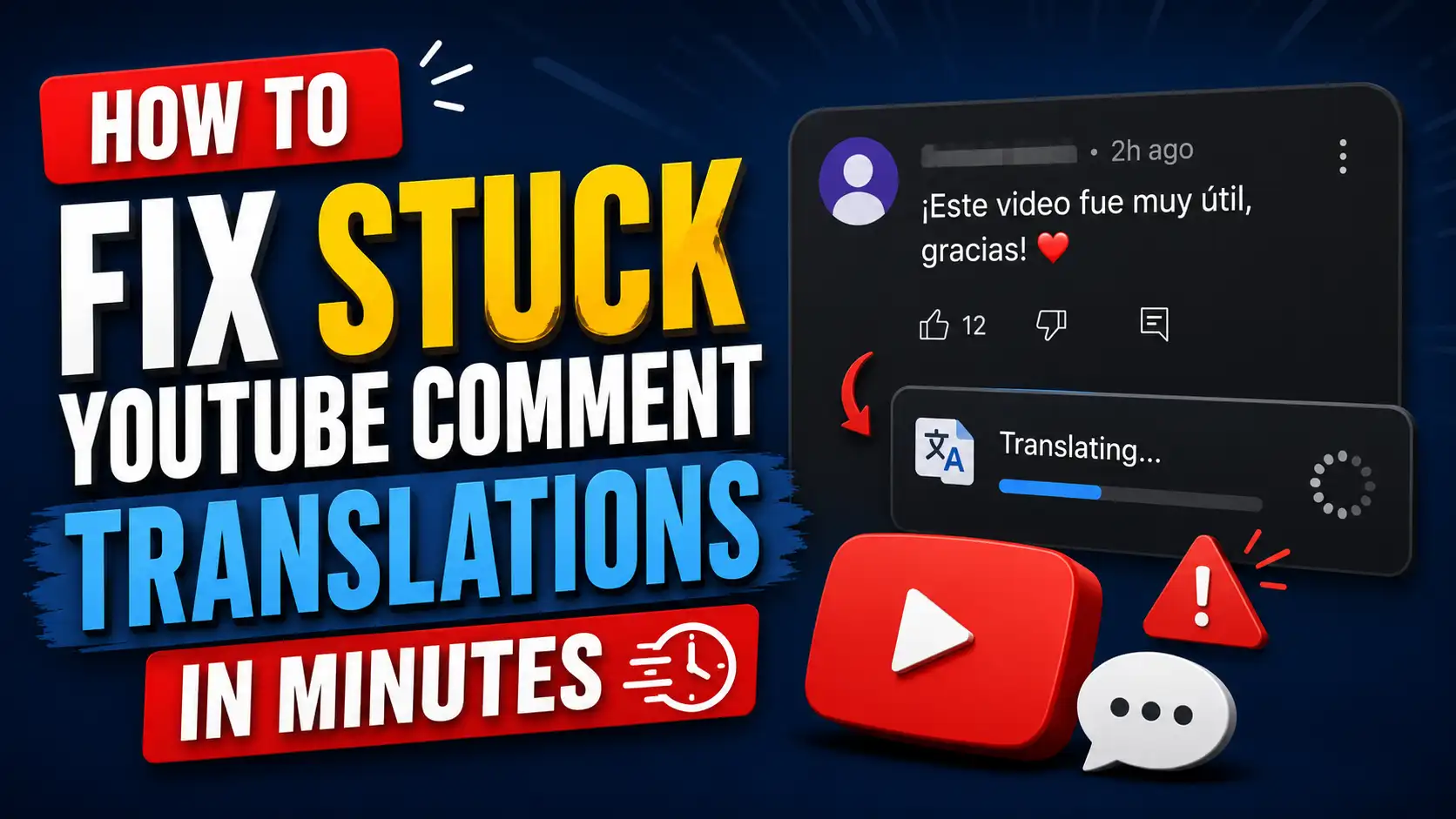
However, many users encounter a frustrating issue where YouTube comment translations suddenly stop working. The Translate button may disappear, comments may remain untranslated, or the translation process may get stuck indefinitely. Fortunately, most of these issues can be resolved quickly with a few troubleshooting steps. This guide will walk you through everything you need to know about fixing stuck YouTube comment translations in just minutes.
Understanding YouTube Comment Translation
What Is the Comment Translation Feature?
The YouTube comment translation feature automatically translates comments written in a language different from your preferred language. Instead of manually copying text into a translation application, users can simply tap the Translate button beneath a comment and instantly view a translated version.
This functionality relies on Google’s machine translation technology, which analyzes the original language and converts it into the language associated with your account or device settings. While the translation may not always sound completely natural, it is generally accurate enough to help users understand the main meaning of comments from people around the world.
Why Users Depend on Comment Translation
For many viewers, comment translation is an essential part of the YouTube experience. Imagine watching a fascinating documentary from Japan or a popular Korean music video. While subtitles may help you understand the content itself, the comments often provide additional context, opinions, explanations, jokes, and discussions that make the viewing experience more interesting.
Without translation tools, these conversations become difficult or impossible to understand. Comment translation bridges that gap and allows users to participate in a truly global community. It transforms YouTube from a collection of videos into a worldwide conversation where language differences become less of a barrier.
Why YouTube Comment Translations Get Stuck
Temporary App Glitches
Applications are not perfect, and even platforms as large and sophisticated as YouTube occasionally experience bugs and temporary glitches. Sometimes the translation feature simply fails to load correctly because of a minor software issue occurring within the application.
These glitches can happen after prolonged app usage, after switching between multiple videos, or while the application is completing background processes. In some cases, the Translate button may appear but fail to respond when tapped. Fortunately, temporary bugs are often the easiest issues to fix because restarting or refreshing the application may immediately restore the feature.
Outdated YouTube Versions
Using an outdated version of YouTube can create compatibility problems with newer server-side features. Think of it like trying to use an old key on a newly installed lock. The application may still work normally for watching videos, but certain functions, including comment translation, may begin behaving unpredictably.
YouTube regularly releases updates that address bugs, improve stability, introduce new features, and ensure compatibility with Google’s latest services. If you delay installing updates for too long, the older application version may struggle to communicate properly with newer translation systems.
Network Connectivity Problems
Translation requests require communication between your device and Google’s servers. If your internet connection is unstable, slow, or frequently interrupted, the translation process may fail before it can finish.
Interestingly, you may still be able to watch videos without obvious interruptions because video buffering works differently from real-time translation requests. A video may have already loaded several seconds of content, while translating a comment requires a new request to the server. This difference can make internet-related translation problems harder to notice.
Language Setting Conflicts
Language preferences play a major role in how YouTube handles translations. Problems may occur when your device language, Google account language, browser language, and YouTube interface language do not match.
For example, your phone may be configured in English, your Google account may use Indonesian, and your YouTube interface may be set to another language. In that situation, YouTube might struggle to determine which language should become the translation target. Aligning these settings can often make the Translate button appear more consistently.
Signs That Comment Translation Is Not Working
Before attempting to fix the problem, it is important to recognize the symptoms correctly. A missing Translate button does not always mean the entire feature is broken, because YouTube may believe the comment is already written in one of your preferred languages. However, repeated failures across different comments usually indicate a genuine technical issue.
Common signs that YouTube comment translation is not working include:
- The Translate button does not appear.
- Tapping Translate produces no result.
- Comments remain in their original language.
- The translation process loads endlessly.
- Some comments translate while others do not.
- The feature disappears after an app update.
- Translation works on one device but not another.
Recognizing these symptoms can help you narrow down the underlying cause more quickly. For example, a feature that works on your phone but fails on your computer is more likely to involve browser settings or extensions than a widespread YouTube server problem.
Quick Fixes You Can Try First
Refresh the Comment Section
Sometimes the simplest solutions are the most effective. Start by closing the comment section completely and then reopening it. This action forces YouTube to reload the visible comments and may restore the translation function without requiring any additional troubleshooting.
You can also switch to another video and then return to the original video. Doing so refreshes several background processes that may have become stuck. On desktop browsers, reloading the page can achieve a similar result. After the comments appear again, find a foreign-language comment and check whether the Translate button responds.
Restart the YouTube App
Restarting the application is often enough to clear temporary bugs. Completely close YouTube from your recent applications list rather than simply minimizing it. Once the application has been fully removed from memory, launch it again and test the translation feature.
Think of this process like rebooting a computer when a program becomes unresponsive. A fresh start clears temporary processes and gives YouTube another chance to connect properly with its translation service. This solution only takes a few seconds and should usually be attempted before making deeper changes.
Check Your Internet Connection
A weak internet connection can silently interfere with translation requests. Try switching from Wi-Fi to mobile data or from mobile data to Wi-Fi. Changing networks allows you to determine whether the problem is connected to your current internet provider or router.
You can also open another application or website to see whether it loads normally. If pages respond slowly, restart your router, reconnect to the network, or move closer to the Wi-Fi access point. Once the connection becomes stable, reopen the comment section and test the translation feature again.
Advanced Solutions
Clear YouTube Cache
Cached files help applications load faster by storing temporary information on your device. However, these files can occasionally become corrupted or outdated. When that happens, certain YouTube features may stop functioning correctly even though videos continue to play normally.
Clearing the cache gives YouTube a fresh set of temporary files without removing your Google account, subscriptions, playlists, or watch history. It is one of the most effective troubleshooting methods for Android devices and may quickly restore comment translation.
Android Devices
Follow these steps to clear the YouTube cache on Android:
- Open Settings.
- Select Apps.
- Find and tap YouTube.
- Choose Storage or Storage and Cache.
- Tap Clear Cache.
After clearing the cache, close the Settings application and launch YouTube again. Open a video containing comments in a foreign language and test the Translate button. Avoid selecting Clear Data unless necessary, because that option may reset local application settings and require you to configure the app again.
iPhone Devices
Apple does not provide a direct Clear Cache button for YouTube in the same way Android does. Instead, iPhone users can remove or offload the application to clear stored files.
Follow these steps on an iPhone:
- Open Settings.
- Select General.
- Tap iPhone Storage.
- Choose YouTube.
- Select Offload App or Delete App.
- Reinstall YouTube from the App Store.
- Sign back into your Google account.
Offloading may preserve some local information, while deleting the application provides a more complete reset. After reinstalling YouTube, open the comment section again and check whether the translation feature responds correctly.
Update the YouTube App
Application updates frequently include bug fixes related to performance, compatibility, stability, security, and feature functionality. Open the Google Play Store on Android or the App Store on iPhone, search for YouTube, and check whether an Update button is available.
Install the update and allow the process to finish before reopening the application. Even when the update description does not specifically mention comment translations, it may contain background fixes that resolve the problem.
Updating is especially important if translation stopped working after a system update or if other users can access the feature normally. The newer YouTube version may include the components required to communicate correctly with Google’s current translation service.
Reinstall YouTube
When clearing the cache and installing updates do not solve the problem, a complete reinstallation may be necessary. Reinstalling removes damaged application files, outdated local components, and incorrect temporary settings.
On Android devices where YouTube is preinstalled, you may not be able to remove the application completely. However, you can usually uninstall its updates and then download the latest version again through the Google Play Store.
On iPhone, press and hold the YouTube icon, remove the application, and reinstall it from the App Store. Once installation is complete, sign into your account and test the comment translation feature before changing any additional settings.
Adjusting Language Preferences
Check Google Account Language
Your Google account language significantly influences YouTube’s translation behavior. To verify it, open your Google Account settings and navigate to the Personal Info section. Locate the language preference and confirm that your preferred language is selected correctly.
You can check the setting by following this order:
- Open your Google Account.
- Select Personal Info.
- Find General Preferences for the Web.
- Open Language.
- Confirm or change your preferred language.
If the language is wrong, replace it with the language in which you want YouTube comments to appear. After saving the change, close YouTube completely and reopen it. You may need to wait briefly for the new language setting to synchronize across Google services.
It can also help to remove additional languages you rarely use, particularly when YouTube incorrectly assumes that you already understand the original language of the comment. When a language is recognized as one of your preferred languages, the Translate button may not always appear.
Verify Device Language Settings
Your smartphone, tablet, or computer language should ideally align with your preferred Google and YouTube language. Mismatched configurations can sometimes confuse the translation system or cause YouTube to choose an unexpected target language.
Open your device’s language settings and verify which language appears at the top of the preference list. On devices that support several languages, place your main language first. Restart YouTube after making the change so the application can reload the updated configuration.
You do not always need every setting to be identical, but using consistent language preferences across your device, Google account, browser, and YouTube interface can improve reliability and reduce translation errors.
Browser-Specific Fixes
Disable Conflicting Extensions
If you are using YouTube on a desktop browser, extensions may interfere with the translation system. Ad blockers, privacy tools, script blockers, cookie managers, and third-party translation extensions can unintentionally prevent certain YouTube components from loading correctly.
Begin by temporarily disabling the most likely extensions, especially tools that modify YouTube pages or block scripts. Reload the video page after disabling each extension and test the Translate button again.
Extensions that commonly deserve checking include:
- Ad blockers.
- Script blockers.
- Privacy extensions.
- Cookie-management tools.
- Third-party YouTube modifiers.
- Automatic translation extensions.
Continue checking extensions one at a time until the feature begins working. This approach helps you identify the exact extension causing the problem without permanently disabling every browser tool you use.
Once you find the source, add YouTube to the extension’s allowlist, adjust its filtering rules, or replace the extension with a less aggressive alternative. Keeping unnecessary extensions disabled can also improve browser speed and reduce future conflicts.
Try Incognito Mode
Incognito or private browsing mode provides a cleaner environment where most extensions are disabled and existing cookies are separated from the normal browsing session. Open an incognito window, visit YouTube, and sign into your account if necessary.
Play the same video and test the comment translation feature. If translation works correctly in incognito mode, the issue is probably related to a browser extension, stored cookie, or cached site data.
Return to the normal browser window and clear YouTube’s cookies and cached files. You can then enable extensions gradually until you discover which one interferes with the feature. Incognito mode does not permanently fix the issue, but it is an excellent diagnostic tool.
Fixing Comment Translation on Smart TVs
YouTube apps on smart TVs may receive updates less frequently than mobile and desktop versions. As a result, certain features may behave differently, appear later, or temporarily stop working after changes are introduced on YouTube’s servers.
If comment translation does not work on your smart TV, try the following solutions in order:
- Update the YouTube app.
- Restart the TV.
- Check for firmware updates.
- Sign out and sign back into your Google account.
- Test the same video on another device.
Start by checking whether a newer version of the YouTube application is available in your smart TV’s app store. An older release may be responsible for missing or stuck features.
Next, restart the television completely rather than simply putting it into standby mode. Disconnect the TV from power briefly if necessary, reconnect it, and reopen YouTube. This process clears temporary memory that may be affecting the application.
You should also check for television firmware updates through the device’s system settings. Manufacturers often release firmware updates that improve application compatibility and fix network-related problems.
Signing out of your Google account and signing back in can refresh account preferences, including language information. After reconnecting your account, open the same video and check whether comment translation becomes available.
Finally, test the video on a smartphone or computer. If translation works on another device but not on the television, the limitation is likely related to the smart TV application. In that case, you may need to use another device until YouTube releases an appropriate update.
If you’re also struggling with unwanted emails cluttering your inbox, check out Gmail Inbox Full of Spam? Try These Solutions for practical tips to reduce spam, improve inbox organization, and keep your Gmail account clean and secure.
Alternative Ways to Translate Comments
Google Translate
When YouTube’s built-in translation feature refuses to cooperate, Google Translate remains an excellent backup option. Copy the original comment, open Google Translate, paste the text into the translation field, and select your preferred target language.
Google Translate can automatically detect many languages, so you often do not need to know what language the commenter used. This method may require a few additional steps, but it remains useful when YouTube’s Translate button is temporarily unavailable.
On mobile devices, you may also use features such as Tap to Translate or the system’s built-in text-selection menu. These tools allow you to translate copied text more quickly without repeatedly switching between applications.
Browser Translation Tools
Modern browsers include built-in translation capabilities that can serve as temporary alternatives. In some browsers, you can highlight comment text, right-click it, and select a translation option from the context menu.
You may also install a reputable browser translation extension, although it is important to choose one that does not interfere with YouTube’s scripts. A lightweight translation tool can help translate selected comments without changing the entire page.
Think of these tools as a spare tire in your car. You may not need them every day, but they become extremely valuable when the main system fails unexpectedly.
Preventing Future Translation Issues
Preventing recurring translation problems is much easier when you maintain the application, device, and browser properly. Small habits can keep YouTube running smoothly and reduce the likelihood of the Translate button becoming stuck again.
To prevent future YouTube comment translation issues:
- Keep YouTube updated.
- Maintain a stable internet connection.
- Regularly clear cached files.
- Avoid installing unnecessary browser extensions.
- Keep your device software updated.
- Use consistent language settings across devices.
- Restart the app occasionally after major updates.
Keeping the YouTube application updated is one of the easiest ways to prevent translation problems. New releases usually include bug fixes and compatibility improvements that help features communicate properly with Google’s servers.
Maintaining a stable internet connection is equally important. Translation requests are small, but they still depend on reliable communication. Weak Wi-Fi, unstable mobile data, or restrictive network settings can cause the Translate button to load slowly or fail.
You should also clear cached files occasionally, especially when YouTube starts behaving strangely. Cache cleaning does not need to become a daily routine, but doing it after persistent errors can prevent corrupted files from accumulating.
Avoid installing excessive browser extensions that modify YouTube, block scripts, or change page elements. The more tools that interact with the website, the greater the chance that one of them will disrupt translation.
Keeping your device software updated can also improve application compatibility. Operating system updates frequently contain network, browser, security, and language-related improvements that may affect YouTube.
Use consistent language settings across your Google account, device, browser, and YouTube interface. This helps the platform identify which comments require translation and which target language it should use.
Finally, restart the application after major updates or whenever features behave unusually. A complete restart allows YouTube to reload updated components and establish a fresh connection with its services.
When to Contact YouTube Support
If you have exhausted every troubleshooting method and translations still refuse to work, the issue may originate from YouTube itself rather than from your device. In that situation, reporting the problem can help YouTube investigate account-specific or widespread platform errors.
Consider contacting YouTube Support when:
- The issue persists across multiple devices.
- Other users report the same problem.
- Translation features disappear entirely.
- The problem continues after reinstalling the app.
- You suspect a server-side outage.
You should consider contacting support when the issue persists across multiple devices. If comment translation fails on your phone, computer, tablet, and television while using the same account, the problem may be linked to your account or YouTube’s servers.
Reports from other users can also indicate a wider problem. If many viewers suddenly lose access to translations at the same time, troubleshooting your device may not provide a permanent solution because the issue originates on YouTube’s side.
Another reason to contact support is when the translation feature disappears entirely from all foreign-language comments. This could indicate a feature test, account configuration issue, regional change, or platform bug.
Persistent problems after reinstalling the application also deserve further investigation. If you have already cleared the cache, updated the app, checked the network, synchronized language settings, and completed a fresh installation, YouTube may need to examine the issue.
You can send a report through YouTube’s Send Feedback option. Include a clear description of what happens, the device you use, the application version, and screenshots if possible. Detailed reports help developers identify patterns and resolve widespread problems more quickly.
Conclusion
A broken YouTube comment translation feature can be surprisingly frustrating, especially when you are trying to understand conversations from creators and viewers around the world. Fortunately, most translation issues stem from relatively simple causes such as outdated applications, corrupted cache files, unstable internet connections, browser conflicts, or inconsistent language settings.
By following the troubleshooting methods outlined in this guide, you can begin with fast solutions such as refreshing the comments, restarting YouTube, and changing networks. If those methods fail, you can continue with advanced options such as clearing cached data, updating or reinstalling the application, checking language preferences, and disabling interfering extensions.
The next time the Translate button stops responding, you will not need to stare at an untranslated comment and hope it fixes itself. A few targeted adjustments can usually restore the feature within minutes and allow you to continue exploring conversations from every corner of the world.
FAQs
1. Why Does YouTube Sometimes Hide the Translate Button?
YouTube may hide the Translate button when it believes the comment is already written in one of your preferred languages. The button may also disappear when the language is not detected correctly, the comment contains mixed languages, or a temporary platform bug prevents translation options from loading.
2. Can a Poor Internet Connection Affect Comment Translations?
Yes, an unstable or slow internet connection can interfere with comment translation. YouTube must send the original comment to its translation service and retrieve the translated version. Even if a buffered video continues playing, the separate translation request may fail when the network becomes unreliable.
3. Will Clearing the YouTube Cache Delete My Account Information?
Clearing the YouTube cache does not delete your Google account, subscriptions, playlists, uploaded videos, or watch history. It only removes temporary files stored by the application. However, selecting Clear Data instead of Clear Cache on Android may reset local application preferences.
4. Why Do Comment Translations Work on My Phone but Not on My Computer?
Translations may work differently across devices because each device uses different application versions, browser extensions, cookies, cached files, networks, and language settings. Testing YouTube in an incognito browser window can help determine whether the desktop problem is related to an extension or stored browser data.
5. Is Reinstalling YouTube Safe?
Reinstalling YouTube is generally safe because your subscriptions, playlists, history, and account information are connected to your Google account rather than the local application installation. After reinstalling the app and signing back in, most account data should appear normally.