

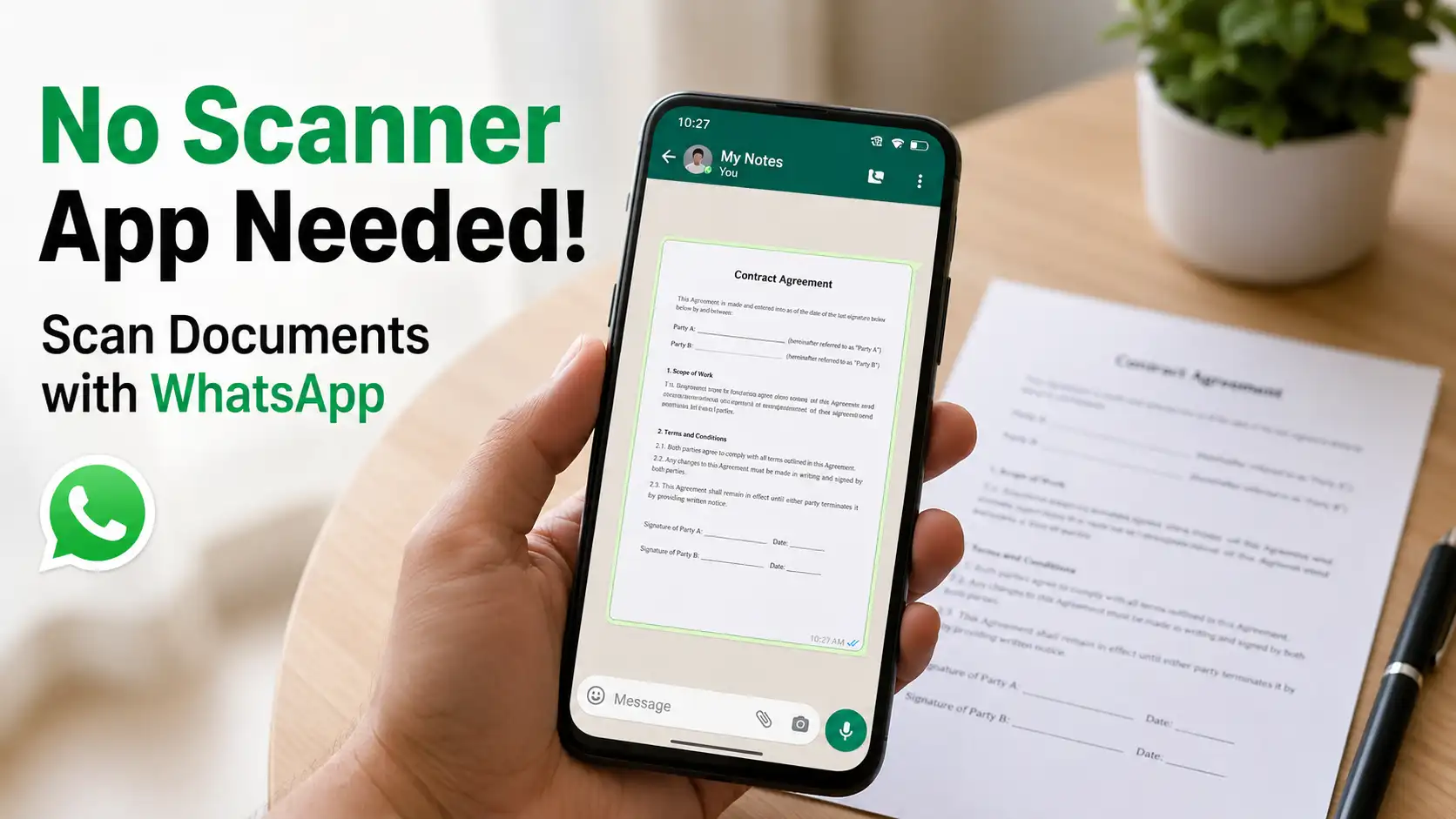
There was a time when scanning a document meant looking for a printer with a built-in scanner or installing a dedicated scanning application on your smartphone. While those methods still work, they often feel unnecessary for quick tasks like sending a signed contract, sharing a receipt, submitting homework, or forwarding an important letter. Most people simply want the fastest way to digitize a document without filling their phones with extra apps they’ll rarely use again. That’s exactly why modern messaging platforms are beginning to include productivity features that eliminate those extra steps.
WhatsApp is one of the most widely used messaging apps in the world, connecting billions of people every day for personal conversations, business communication, education, and collaboration. As the platform continues to evolve, it has become much more than a place to exchange text messages. Users can make voice and video calls, share their live location, send high-quality media, create communities, and manage work-related conversations. The addition of a built-in document scanner is another example of WhatsApp transforming into an all-in-one communication tool that helps people accomplish everyday tasks more efficiently.
Instead of switching between multiple applications, WhatsApp now allows users to scan, edit, and send documents from a single interface. The process is quick, intuitive, and requires almost no learning curve, making it ideal for students, professionals, freelancers, business owners, and anyone who regularly shares paperwork online. In this article, you’ll learn how to scan documents with WhatsApp, discover its most useful features, understand its limitations, and pick up practical tips for creating clear, professional-looking scans every time.
Why WhatsApp Added a Document Scanner
WhatsApp has steadily expanded its feature set over the years to reduce the need for third-party applications. Rather than forcing users to jump between different tools, the platform now handles many everyday tasks directly inside the app. Adding a document scanner follows that same philosophy. Whether someone needs to send a signed agreement, an invoice, a school assignment, or an identification document, they can complete the entire process without interrupting their conversation or downloading additional software. This creates a smoother, faster experience while saving both time and storage space on the device.
The feature also reflects how communication has changed in recent years. Digital documents have become part of everyday life, whether you’re working remotely, studying online, running a small business, or dealing with government paperwork. People expect to send documents as easily as they send photos or voice messages. By integrating document scanning into one of the world’s most popular messaging platforms, WhatsApp makes document sharing more accessible, convenient, and efficient for millions of users regardless of their technical experience.
What You Need Before You Start
Before scanning your first document, there are a few simple things worth checking. The good news is that you won’t need expensive hardware or specialized equipment. Most modern smartphones already have everything required to create a high-quality digital copy of your paperwork.
Another important factor is ensuring your document is in good condition before you begin. Flatten folded pages, remove unnecessary shadows, and place the paper on a solid surface with adequate lighting. A little preparation goes a long way toward producing a cleaner, sharper scan that looks far more professional.
Device Compatibility
The built-in scanner is gradually becoming available on supported versions of WhatsApp. Depending on your operating system and region, the feature may already be available or still rolling out through future updates.
Required WhatsApp Version
Always keep WhatsApp updated to the latest version available through your device’s app store. New features, performance improvements, and security updates are often included in the newest releases, so updating the app gives you the best chance of accessing the document scanner as soon as it becomes available.
Prepare Your Document
Place your document on a flat surface with good lighting before opening the camera. Clean backgrounds, even lighting, and a steady hand will help WhatsApp detect the page correctly and produce a much clearer final result.
How to Scan Documents with WhatsApp
Scanning a document with WhatsApp is designed to be as simple as sending a photo. The feature eliminates unnecessary steps by allowing you to capture, edit, and share documents without ever leaving the conversation. Whether you’re sending paperwork to a client, submitting an assignment to your teacher, or sharing receipts with your family, the entire process only takes a few moments once you know where to find the scanner.
Although the interface is straightforward, following the correct sequence can make a noticeable difference in the quality of your scans. From positioning the document properly to reviewing the final result before sending, every small step helps produce a cleaner and more professional-looking file.
Step 1: Open the Chat
Launch WhatsApp and open the conversation where you want to send the scanned document. This can be an individual chat, a group conversation, or even your own personal chat if you want to save the document for future reference. Starting from the intended chat means the scanned file will be ready to send immediately after you finish capturing it.
Step 2: Tap the Attachment Icon
Tap the attachment icon next to the message box and select Document. On devices that support the feature, you’ll see a Scan Document option. Choosing this opens the built-in document scanner instead of your regular camera, making it easier to capture paperwork accurately.
Step 3: Position Your Document
Place the document on a flat surface and hold your phone directly above it. Try to keep the camera parallel to the paper instead of tilting it from the side. This helps WhatsApp recognize the document boundaries correctly and minimizes perspective distortion before the image is processed.
Step 4: Capture the Document
Once the page is fully visible, allow WhatsApp to detect the document automatically or press the shutter button manually if necessary. Hold your phone steady while capturing the image to avoid blur, especially when scanning documents filled with small text.
Step 5: Adjust the Document Borders
After taking the picture, WhatsApp automatically highlights the edges of the page. If the border detection isn’t perfect, simply drag each corner until it matches the actual document. Taking a few extra seconds here results in a cleaner and more accurate scan.
Step 6: Review the Final Scan
Zoom in before saving the document to make sure every section is readable. Pay close attention to signatures, stamps, QR codes, barcodes, and small printed text. If anything appears blurry or cut off, retake the scan rather than sending a poor-quality copy.
Step 7: Save and Send
When you’re satisfied with the scan, save it and tap Send. WhatsApp prepares the document for sharing within seconds, allowing the recipient to receive a neat digital copy without any additional processing.
Features That Make WhatsApp Scanning Useful
WhatsApp’s document scanner may look simple on the surface, but several intelligent features work together to improve the final result automatically. Instead of overwhelming users with complicated settings, the application performs most enhancements behind the scenes, making document scanning fast and beginner-friendly. This balance between simplicity and functionality is one of the reasons the feature is so convenient for everyday use.
Although it doesn’t replace professional scanning software, WhatsApp includes enough essential tools to satisfy the needs of most users. From automatic edge detection to perspective correction, these built-in capabilities help transform an ordinary smartphone camera into a surprisingly capable document scanner.
Automatic Edge Detection
WhatsApp automatically identifies the edges of your document as soon as it appears in the camera view. This saves time by reducing manual cropping while ensuring the page occupies as much of the frame as possible.
Perspective Correction
If your phone isn’t perfectly aligned above the paper, WhatsApp attempts to straighten the image digitally. This correction helps documents appear flatter and more natural, making them easier to read.
Built-in Cropping
Instead of opening a photo editor afterward, you can crop unnecessary backgrounds immediately after scanning. Removing excess space around the paper creates a cleaner and more professional presentation.
High-Quality Digital Output
The scanned document maintains impressive clarity for everyday use. Printed text, signatures, and diagrams remain readable, making the feature suitable for contracts, invoices, forms, assignments, and many other types of paperwork.
Tips for Better Document Scans
Even the best scanning feature can’t completely compensate for poor shooting conditions. Simple habits such as improving your lighting or cleaning your camera lens can dramatically increase the quality of your scans. Fortunately, producing professional-looking documents doesn’t require expensive equipment—just a little attention to detail before pressing the shutter button.
If you regularly send documents for work or school, developing good scanning habits will save you time in the long run. Better scans reduce the chance of recipients asking for another copy and help your documents appear more polished and trustworthy.
Use Bright, Even Lighting
Natural daylight usually delivers the best results because it produces balanced illumination without creating harsh shadows. If you’re indoors, position the document under a bright light that covers the entire page evenly.
Hold Your Phone Steady
Camera movement is one of the most common causes of blurry scans. Hold your phone with both hands or rest your elbows on a table to improve stability before taking the picture.
Choose a Plain Background
A plain surface with strong contrast against the document helps WhatsApp recognize the paper more accurately. Busy patterns or colorful backgrounds can sometimes confuse automatic edge detection.
Clean the Camera Lens
Fingerprints, dust, and smudges can reduce image sharpness without being immediately obvious. Wiping the camera lens with a soft microfiber cloth takes only a few seconds but noticeably improves scan quality.
Keep the Entire Page Inside the Frame
Avoid cutting off document edges while capturing the image. Leaving a small amount of space around the paper gives WhatsApp enough information to detect borders correctly and crop the document accurately.
What Documents Can You Scan?
WhatsApp’s scanner is flexible enough to handle many different types of paperwork. Whether you’re managing personal records or professional documents, the feature works well for most everyday scanning tasks. Since the output is clear and easy to share, it eliminates the need to photograph documents manually and hope the text remains readable.
The scanner is especially useful when you need to digitize paperwork quickly before sending it through a conversation. As long as the document fits comfortably within your camera frame and is well lit, WhatsApp can usually produce an excellent digital copy.
Some of the most common documents you can scan include:
- Contracts
- Business agreements
- School assignments
- Homework
- Office reports
- Receipts
- Bills
- Invoices
- Bank documents
- Certificates
- Letters
- Meeting notes
- Medical records
- Insurance forms
- Passports
- Driver’s licenses
- National ID cards
- Event tickets
- Warranty cards
- Business cards
For more privacy tips, read Keep Your WhatsApp Chats Private with This Feature to learn how WhatsApp’s built-in privacy tools can help keep your personal conversations and sensitive messages more secure.
WhatsApp Scanner vs Dedicated Scanner Apps
Choosing between WhatsApp’s built-in scanner and a dedicated document scanning app ultimately depends on how you plan to use it. For most everyday tasks, WhatsApp provides everything the average user needs. It allows you to capture a document, make basic adjustments, and send it instantly without leaving the conversation. This seamless workflow makes it incredibly convenient for people who only scan documents occasionally and don’t want to clutter their phones with additional applications.
However, dedicated scanner apps still have their place, particularly for professionals who work with digital documents every day. Applications like Adobe Scan, Microsoft Lens, and similar tools offer advanced features such as Optical Character Recognition (OCR), searchable PDFs, cloud synchronization, multi-page document organization, digital signatures, watermarking, password protection, and sophisticated image enhancement. While WhatsApp excels in speed and simplicity, specialized scanner apps remain the better choice for users with more demanding document management needs.
Advantages of WhatsApp Scanner
The biggest advantage of WhatsApp’s scanner is convenience. Since the feature is built directly into one of the world’s most popular messaging apps, users don’t have to install, learn, or switch between different applications. Everything happens in one place, making the process significantly faster, especially when you’re in the middle of an important conversation and need to send paperwork immediately.
Another major benefit is storage efficiency. Installing multiple scanner applications consumes additional space, while WhatsApp’s built-in scanner adds functionality without requiring another download. For users who prefer keeping their devices clean and uncluttered, this integrated approach offers a much simpler experience.
When You Still Need a Scanner App
Although WhatsApp performs well for everyday document sharing, it isn’t designed to replace professional document management software. If your job requires scanning dozens of pages every day, converting printed text into editable documents, organizing large collections of PDFs, or securely archiving sensitive paperwork, a dedicated scanner application will provide far more flexibility.
Businesses, legal professionals, accountants, architects, and students working with lengthy research papers may also benefit from advanced editing tools that go beyond WhatsApp’s capabilities. Features such as batch scanning, automatic file naming, cloud backup, OCR, and advanced compression can significantly improve productivity when handling large numbers of documents.
Common Problems and Their Solutions
Like any smartphone feature, WhatsApp’s document scanner may occasionally encounter small issues. Fortunately, most problems are easy to solve without requiring technical knowledge. In many cases, simply updating the app, improving your lighting, or adjusting the camera position is enough to restore normal functionality.
Understanding these common issues before they occur can save valuable time, particularly when you need to send an important document quickly. Rather than becoming frustrated, a few simple troubleshooting steps usually solve the problem within minutes.
Scanner Option Isn’t Available
If you don’t see the Scan Document option, start by updating WhatsApp through your device’s app store. Since new features are rolled out gradually, it’s also possible that the scanner hasn’t reached your region or operating system yet. Keeping your phone’s operating system updated can also improve compatibility with newly released features.
Scanned Images Look Blurry
Blurry scans are usually caused by poor lighting or camera movement. Hold your phone steadily, clean the camera lens, and ensure the document is well illuminated before capturing it. If the text still appears unclear, move closer to the page and try again while maintaining a stable position.
Document Edges Are Cropped Incorrectly
Automatic edge detection works well most of the time, but busy backgrounds or poor contrast can confuse the system. Place your document on a plain, solid-colored surface and manually adjust the corners if necessary before saving the scan.
Glare Covers Part of the Document
Glossy paper, laminated certificates, and plastic identification cards often reflect overhead lighting. Instead of pointing the camera directly under a bright light, slightly change the angle of either the document or the phone until the reflection disappears while keeping the text fully visible.
Privacy and Security
Whenever you’re scanning personal or business documents, protecting sensitive information should always be a priority. Many scanned files contain names, addresses, signatures, financial information, identification numbers, or confidential agreements that shouldn’t be shared carelessly. Fortunately, WhatsApp protects messages and supported attachments using end-to-end encryption, ensuring that only the sender and intended recipient can access the conversation while it’s being transmitted.
Even with strong encryption, users should remain cautious when handling confidential documents. Always double-check the recipient before tapping the send button, especially when forwarding files in busy group chats. It’s also good practice to avoid scanning highly sensitive paperwork on shared devices and to delete unnecessary copies from your phone if they are no longer needed. A few simple habits can greatly reduce the risk of accidentally exposing personal information.
Best Practices for Professional Scans
Creating a professional-looking document isn’t just about having a good camera. Small details such as lighting, positioning, and careful review all contribute to the final result. Spending an extra minute preparing the document often produces a scan that looks significantly cleaner than one captured in a hurry. If you’re sending paperwork to an employer, university, government office, or client, presentation matters just as much as readability.
Before sending your document, zoom in and inspect every section carefully. Make sure signatures remain sharp, printed text is easy to read, and no important information has been cropped out. If the document contains multiple pages, scan each page using the same lighting and positioning to maintain a consistent appearance throughout. These simple habits help your documents look more polished and demonstrate greater attention to detail.
Conclusion
WhatsApp’s built-in document scanner proves that everyday productivity doesn’t always require specialized software. By allowing users to scan, crop, adjust, and send documents without leaving the conversation, the feature removes unnecessary steps and makes digital document sharing faster than ever. Whether you’re sending receipts, contracts, school assignments, business forms, or identification documents, the built-in scanner provides an efficient solution that most people can use without any learning curve.
While dedicated scanning applications still offer advanced features for professional document management, WhatsApp delivers exactly what many users need: speed, simplicity, and convenience. As the platform continues to introduce new productivity tools, its document scanner is likely to become an essential feature for millions of users who want a quick and reliable way to digitize paperwork directly from their smartphones.
FAQs
1. Is WhatsApp’s document scanner free to use?
Yes. The document scanner is included as part of WhatsApp at no additional cost. As long as your device supports the feature and you’re using a compatible version of the app, you can scan and share documents without paying for a separate scanning service or downloading another application.
2. Can I scan multiple pages into a single document?
Support for multi-page scanning depends on your version of WhatsApp and the operating system you’re using. As WhatsApp continues to update its scanning feature, additional functionality may become available through future releases.
3. Does WhatsApp reduce the quality of scanned documents?
WhatsApp is designed to preserve document clarity, making scanned text easy to read in most situations. However, the final quality still depends on factors such as lighting, camera stability, document condition, and your smartphone’s camera performance.
4. Can I use WhatsApp to scan official documents like passports or ID cards?
Yes. WhatsApp can scan official documents such as passports, driver’s licenses, and national identification cards. However, because these documents contain sensitive personal information, always verify the recipient before sending them and avoid sharing confidential files unnecessarily.
5. Should I replace my scanner app with WhatsApp?
If you only need to scan and send documents occasionally, WhatsApp is more than capable of handling everyday tasks. However, if you regularly require OCR, searchable PDFs, cloud synchronization, digital signatures, or advanced document organization, a dedicated scanner app remains the better option for professional use.